Keep each WEBTOON CANVAS episode image within 800 × 1280 pixels. You can draw on a larger canvas and export a copy at the upload size. WEBTOON's 2025 update recommends 202 × 142 pixels for episode thumbnails, and the two series thumbnails use different dimensions. When the creator dashboard disagrees with older documentation, follow the dashboard and test a short upload before you release the full episode.
What size does WEBTOON CANVAS require for each image?
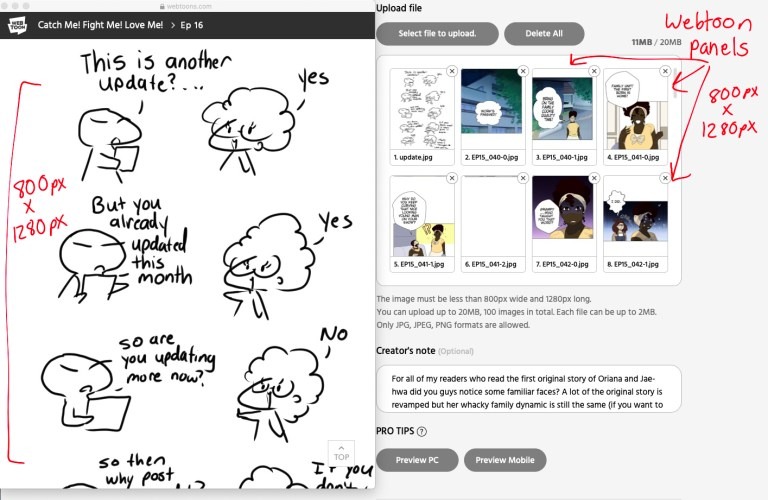
Each episode image can be up to 800 pixels wide and 1280 pixels tall. The limit applies per image, so a scrolling episode can run far beyond 1280 pixels when it's built from several consecutive images.
WEBTOON uses several image assets. A series cover has different dimensions from the artwork inside an episode, and publishing a series requires both the square and the vertical thumbnail.
| Asset | Pixel dimensions | File-size requirement | Accepted formats | Source |
|---|---|---|---|---|
| Episode upload image | Up to 800 × 1280 per image | 2 MB per image; up to 20 MB and 100 images per episode | JPG, JPEG, PNG | Official 2024 checklist |
| Square series thumbnail | 1080 × 1080 | Under 500 KB | JPG, JPEG, PNG | Official 2024 checklist |
| Vertical series thumbnail | 1080 × 1920 | Under 700 KB | JPG, JPEG, PNG | Official 2024 checklist |
| Episode thumbnail | 202 × 142 recommended; previously 160 × 151 | Under 500 KB | JPG, JPEG, PNG | 2026 WEBTOON help (202 × 142); 2024 checklist (160 × 151) |
The file-size and image-count limits come from WEBTOON's Before You Publish Checklist, which covers the 2024 rules. The creator dashboard decides which files the uploader accepts when you publish.
WEBTOON's New Series Home announcement, updated June 24, 2025, encouraged creators to prepare 202 × 142 images for a wider display. That makes 202 × 142 a recommendation for the wider display. Older app layouts crop thumbnails differently.
An 800 × 1280 episode export has different proportions from the square and vertical series covers. Decide which asset you're making before you enter dimensions in your drawing app.
Should you draw at 800 pixels wide or work larger?
An 800-pixel-wide file works as the finished upload. It's cramped for detailed artwork. A larger editable canvas gives you more pixels, which helps with small figures, thin lines, and lettering.
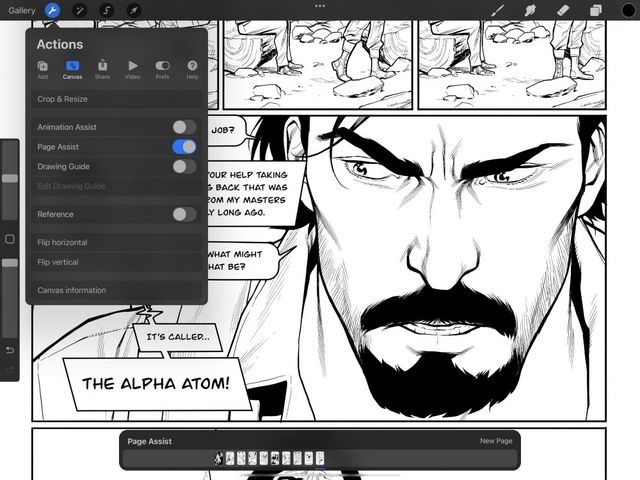
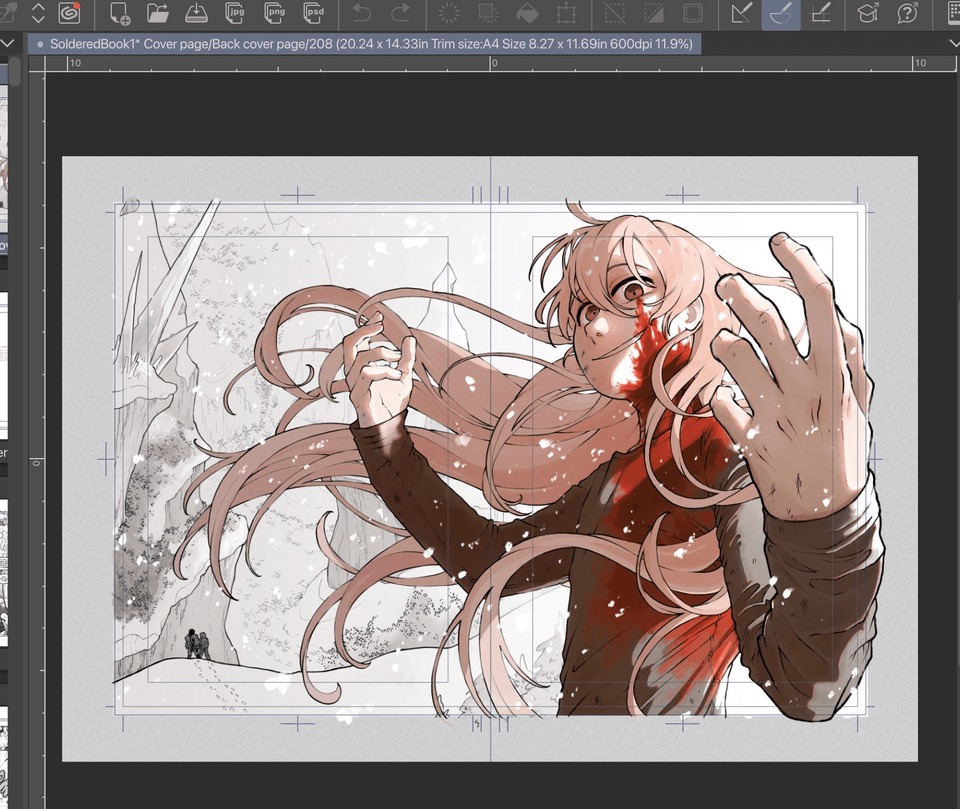
One Clip Studio Paint creator works on a 1600 × 2560-pixel canvas. Halving both dimensions gives an 800 × 1280-pixel export with the same proportions. The 1600-pixel width is the artist's own choice.
That gives you two files with different jobs:
- Editable master: The layered artwork, where you refine lines, move lettering, adjust colors, and fix mistakes.
- Delivery image: The smaller rendered file at WEBTOON's upload dimensions.
Some artists go taller. Another Clip Studio user demonstrated a 1600 × 25,600-pixel canvas.
The trade-off is memory and editing performance: a simple drawing works at 800 pixels wide, while a complex scene needs the extra room.
One Krita user hit a pixelation problem while drawing a small scene on an upload-sized canvas:
I'm working on a webtoon panel in Krita and running into a frustrating pixelation issue. My canvas is 800×3000px at 350 DPI, and I'm trying to draw a small group of figures in a corner of the panel — it's meant to represent a distant memory, so it intentionally occupies a small section of the canvas.
I can zoom in just fine in Ps as long as dpi is 300+, but in Krita is really disappointing.
The figures sit in a small corner. A face that fills a tiny fraction of an 800-pixel-wide image has few pixels for its eyes and mouth.
DPI adds to the confusion. The quoted canvas is 800 pixels wide whether its metadata says 350 DPI, 300 DPI, or another value. Changing the metadata without resampling adds no detail.
Before you commit to a long chapter, draw a small detail on your planned working canvas and view a test-size export.
Resize, crop, or slice?
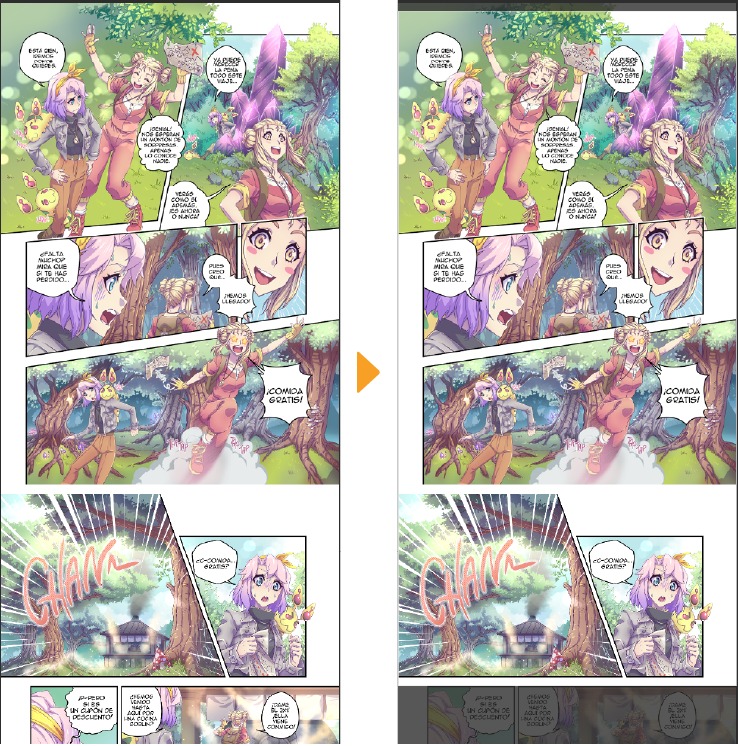
Resizing, cropping, and slicing solve different problems. The wrong choice distorts your comic, cuts off its edges, or splits it in unexpected places.
| Operation | What happens | When to use it |
|---|---|---|
| Proportional image resizing | Pixel dimensions change; width and height keep the same ratio | Preparing a smaller delivery image |
| Cropping or canvas-boundary adjustment | The visible area changes, and content outside the new bounds is removed | Reframing a thumbnail or trimming art on purpose |
| Vertical slicing | A long image is divided into consecutive files | Preparing a continuous Webtoon strip for upload |
A working image measures 1600 × 5000 pixels. Cut the width to 800 pixels, a 50% reduction. With the proportions locked, the height drops to 2500 pixels.
Slice that 800 × 2500 export vertically into two consecutive files:
- First slice: 800 × 1280 pixels.
- Second slice: 800 × 1220 pixels.
The combined height stays 2500 pixels. A shorter last image is normal and needs no stretching.
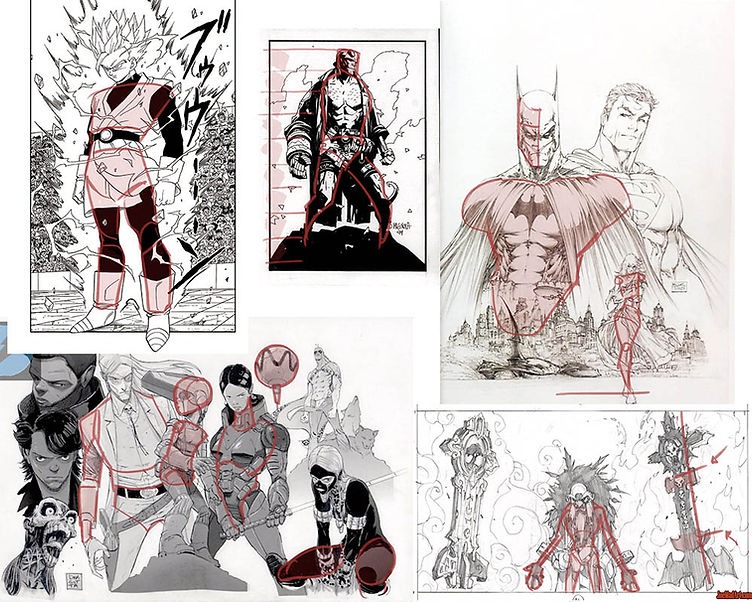
If you change a 1080-pixel-wide canvas boundary to 800 pixels and leave the drawing at its original scale, you lose artwork at the sides. If you force width and height into unrelated proportions, circles turn into ovals. Link width and height when you scale the image.
A panel can cross a slice boundary. The exported pieces display one after another in the scrolling episode, so a single illustrated panel can span several upload images.
WEBTOON also optimizes and splits long uploaded images automatically. For manual control, the Clip Studio Paint Webtoons manual covers File > Export webtoon, output-width adjustments, vertical division, and numbered files.
Clip Studio Paint marks some multi-page export controls as available only in the EX edition.
Keep your layered master intact and convert a separate copy. Open the exported segments in order before you submit them.
PNG or JPEG, and how to stay under the size limits
A file with the correct pixel dimensions can still exceed an upload limit on size.
PNG and JPEG behave differently:
- PNG: Test it when clean line edges, flat colors, and lettering matter. Expect larger files.
- JPEG: Adjustable compression reduces file size for detailed or photographic images. Aggressive compression adds artifacts around lines and text.
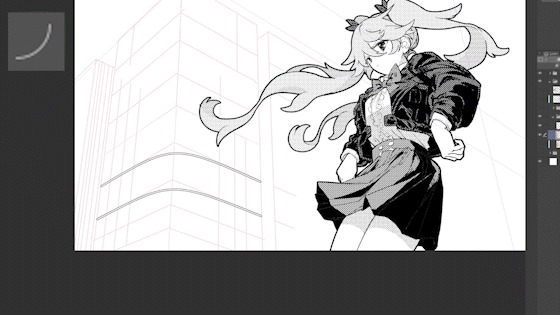
Clip Studio Paint's Prefer quality setting for reducing comic images affects how downscaled artwork looks.
Export the same finished image as PNG and as JPEG at the required pixel dimensions. Compare the lettering and line edges, then read off each file's size. If a file exceeds the limit, adjust its export compression and compare again.
For a multi-image episode, add up the file sizes and count the files too. Every image can fit its limit while the whole episode goes over 20 MB.
Square, vertical, and episode thumbnails
Each thumbnail needs its own composition, so make a separate file for each one. A square cover, a tall cover, and a wide episode thumbnail each frame the focal point differently.
Stretching one image into all three shapes distorts a character, and cropping can cut off a face or title near the edge. Put a portrait near the center of the square cover. Use the vertical cover to show a full pose or costume. Give the wide episode thumbnail a tighter crop.
One creator described trying seven versions of a thumbnail:
So I wanted to share it so at least some people got to see it
And yes I did try multiple different levels of complexity this is like 7th one I tried
Commenters pointed to file size, and a simpler composition changes both the focal point and the compressed size.
For each finished thumbnail, measure its dimensions and its size in KB, then confirm the focal point survives the display crop.
Panel spacing, lettering, and the reader's mobile view
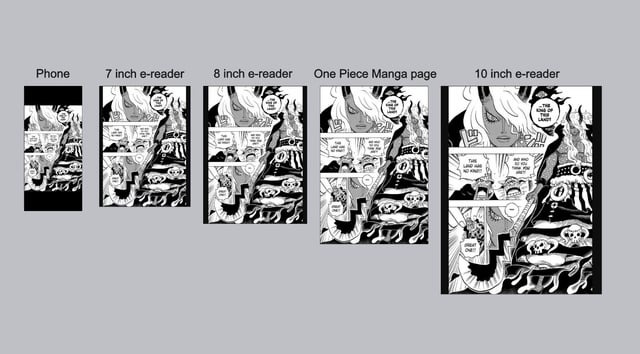
Read the full exported episode in WEBTOON's mobile and desktop previews. Make sure balloons read in order, the text is legible, and the scenes flow with the pauses you intended.
Fine lettering gets hard to read at phone size even when the export meets its pixel requirements. A comic that reads well on a large drawing monitor can need different lettering or spacing on a phone.
Spacing between panels sets the pause before the next scene.
Why does the uploaded Webtoon look blurry even when the dimensions are right?
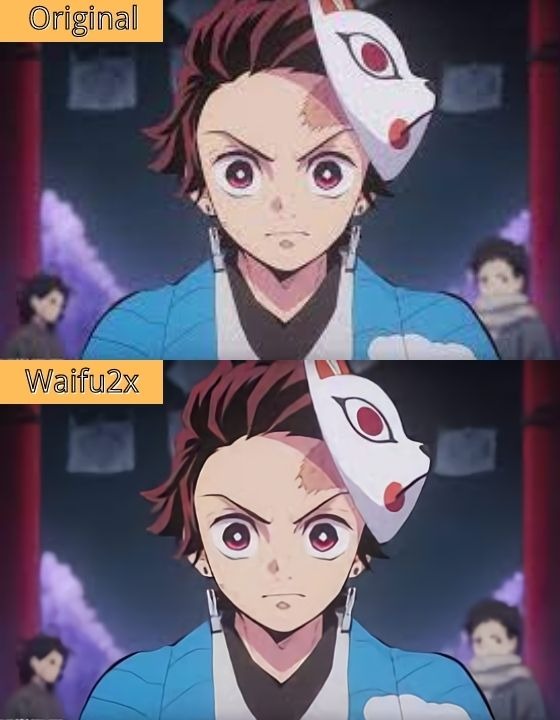
If your original art looks sharp but the uploaded episode looks soft, find the first stage where the look changes. That stage tells you which setting to adjust.
| Where the problem first appears | Likely cause | Quick test |
|---|---|---|
| In the editable original | Raster detail or line quality at the working size | Check a typical fine detail at a realistic scale |
| In the local exported file | Downsampling, interpolation, compression, or stretching | Compare exports, changing one setting at a time |
| Only in the WEBTOON preview or browser | Platform processing or how the display scales image pixels | Confirm the local export, then compare browser zoom and OS scaling |
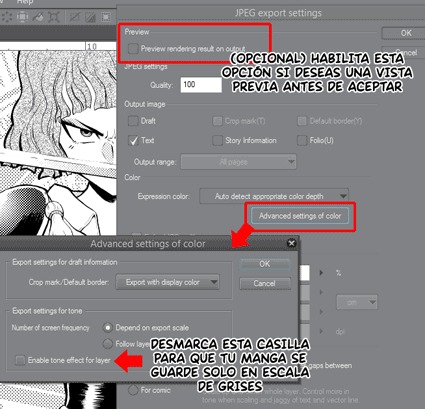
A MediBang user tried the 1600-to-800 workflow and still got a blurry upload:
I'm new to WEBTOON (and making comics, really). Whenever I upload my work to WEBTOON, it seems to be blurry, especially compared to other works in CANVA. I use Medibang and initially work with 9375px width, then shrink images to 1600px, then upload.
The file of the image, the one I uploaded to WEBTOON from my folder (1600-width PNG), is pristine.
I followed some tips in the comments and tried to draw on 1600 width, then reduce it to 800, but the image still looks quite blurry. What can I do? I know your image quality can't be perfect (as you're uploading), so is this something I can't do anything about?
The author's local 1600-width PNG looked clean, and the softness appeared in the WEBTOON preview.
A second creator compared the saved file with the uploaded version and noticed something about browser zoom:
I’m having a problem with the image quality of my webtoon after uploading it to WEBTOON Canvas.
I draw on a very large canvas in Krita: 3000 × 40,000 px at 350 DPI. When I view my artwork at 100% zoom in Krita, the line art looks extremely crisp.
However, after I upload the exact same resized image to WEBTOON Canvas, it looks noticeably different and less crisp. It is not exactly blurry, but the lines look softer compared with the original file.
Here is the strange part: if I set my browser zoom to 80%, the uploaded WEBTOON image looks almost exactly like the image does at 100% zoom in Krita and in the saved resized file. At 100% browser zoom, however, it looks different and softer.
Commenters pointed to 125% Windows display scaling.
If the softness appears only in the browser, sort out the display setting before you re-export a whole chapter. If the local export already looks soft, work on its conversion settings.
Upload rejected or image cropped?
If an image is rejected or looks cut off, start with the exact error message or symptom. A correctly sized image can still be too large in KB, use an unsupported format, crop badly, or run into a separate publishing requirement.
| Symptom | Likely cause | What to do |
|---|---|---|
| Dimensions error | Image exceeds the pixel limits for that asset | Check the exported dimensions against that asset's limit |
| File-size error | File is larger than the limit for that asset | Compare the file's size in KB or MB with that limit |
| Format error | File isn't a supported or correctly encoded image | Check the extension and the actual format |
| Missing edges or unexpected crop | Export bounds or thumbnail display | Compare your export boundaries with the uploader's preview |
| Episode cannot be published with compliant images | Dashboard or publishing-workflow requirement | Read WEBTOON's notice for that error |
The 2024 checklist asks for English letters and numbers in the filenames of square series and episode thumbnails. If a thumbnail fails to load, look at its filename.
Sort out which error you have before you change any files. If the cause stays unclear, upload a simple image that meets the dimension, format, and file-size requirements. If that fails too, with no message about the file, look at the creator dashboard or publishing workflow next.
WEBTOON's official upload troubleshooting guide, updated April 22, 2026, names a content-rating questionnaire as one reason a new episode can be blocked. Your images can be compliant and the episode still stays blocked until you complete that questionnaire.