Start with the tools you already own, as long as they can produce and export a complete manga page in your intended format. Make one page with panels, dialogue and finished artwork to see where the process gets hard. Upgrade only when that trial exposes a specific limit worth solving.
Start with the manga you're trying to finish
Decide what you're making before you shop for supplies: a short page-based manga, a longer chapter, or a comic that scrolls vertically on a phone.
These projects share drawing skills, but they're built differently. A page-based manga needs a coherent layout within each page. A vertical-scroll episode is made for continuous reading down a screen, so layout and delivery work differently.
Even the smallest complete manga scene takes several steps. You sketch the action, arrange it in panels, develop the artwork, place dialogue if the scene has any, and produce a readable final file. A character portrait covers only part of that.
Beginners hit this question early. In r/Mangamakers, one asked about traditional supplies: “Irl, what pens would I need? What paper?”
Ordinary drawing supplies work if they let you create the scene you have in mind. Digital work adds an application and an input method: a pen tablet connected to a computer, or a standalone device with a compatible stylus.
For a first project, your setup has to do three things:
- Create the artwork. You need a drawing method you control well enough to sketch and finish the scene.
- Organize the story visually. You need a workable way to arrange panels and place words where readers can follow them.
- Deliver the result. You need a file or physical original suitable for where it's going.
A traditional, digital or mixed process can do all three.
Write down the intended deliverable in one sentence, such as a short page-based manga or a vertical-scroll episode. That sentence sets your requirements.
Choose the drawing surface: paper, pen tablet, pen display, or standalone tablet
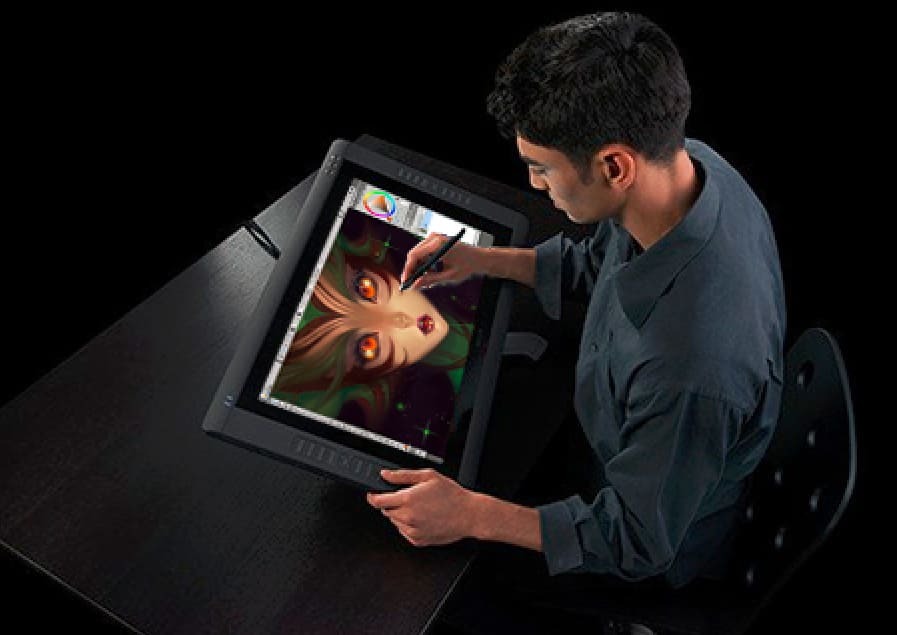
“Drawing tablet” can mean a peripheral that needs a computer, a screen you draw on directly, or a self-contained device that runs its own apps. Sort out which one you mean before you think about brand or price.
| Drawing surface | Computer required? | Main attraction | What to check |
|---|---|---|---|
| Paper and pens | No computer for drawing | Familiar hand control, simple setup | How you'll capture or deliver the finished art |
| Screenless pen tablet | Normally yes, with a separate monitor | Pen input for desktop drawing apps | Operating system, connections, drawing comfort |
| Pen display | Many models require a computer | Draw directly on the image | Host requirements, cables, device compatibility |
| Standalone tablet, such as an iPad | No external computer for compatible apps | Portable drawing and editing | Available software, stylus compatibility, output options |
A screenless pen tablet sends stylus input to an app on your computer. Your hand moves on the tablet while your eyes follow the cursor on a separate monitor. If you're used to watching a pencil touch paper, expect to practice that separation. An awkward first session doesn't mean the device is wrong for you.
A pen display puts the image under the stylus. Many models still rely on a connected computer for apps, processing and files. Having a screen doesn't make a pen display self-contained.

An iPad or another standalone drawing tablet has its own computing environment. It's portable, but you choose software from the apps available on that device.
Paper remains a direct way to draw, especially if you already have supplies and like the feel of the surface. You can add digital delivery later.
Match the hardware to what you already own
List the computer, monitor, operating system and drawing input you have. For any new device, find out whether it needs a host computer and whether its connectors, driver support and stylus work with your setup.
With a usable laptop, you're choosing a peripheral. Buying a computer and a drawing surface together means choosing a whole setup.
Once you know the device category, compare individual tablet models in a separate hardware comparison.
Look for the manga-production functions your app needs
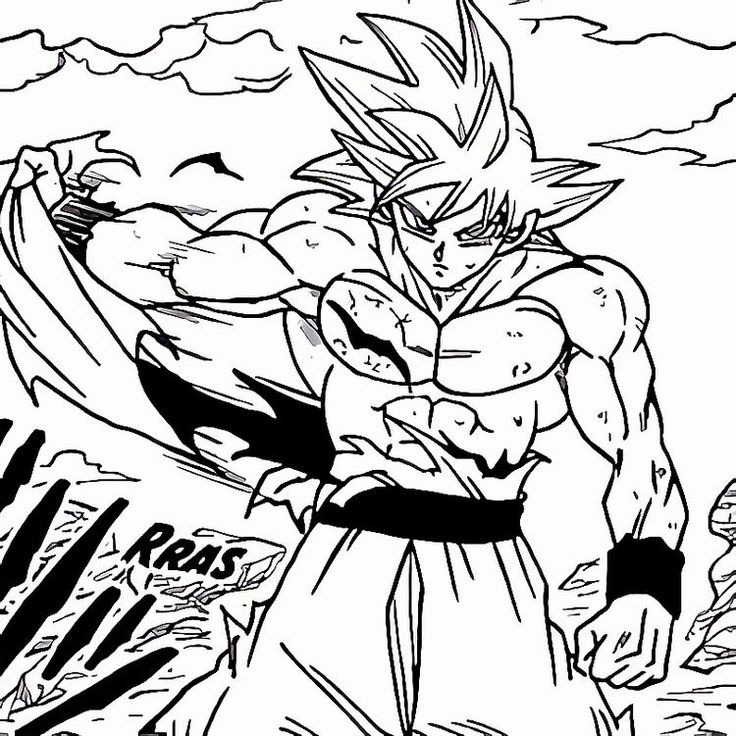
A drawing app becomes useful for manga when it supports building and revising complete pages. An illustrator on r/Mangamakers put the problem this way: “im used to drawing on Krita but was wondering, what would be the best software to draw an actual manga and not just standalone art?”
Panels need to remain manageable
A manga page combines images with panel borders, gaps between panels called gutters, and a reading path. You can build panels by hand with drawing layers or vector tools. Dedicated comic-frame systems offer editable panel borders and frame structures, and Clip Studio Paint covers them in its Frames and Panels manual.
Specialized frames make some revisions easier, but they're optional. A general-purpose app can produce manga if its drawing and page-building tools cover what you need.
Dialogue needs room to change
Speech balloons interact with composition. Moving or rewriting a line shifts where the reader looks and how much artwork stays visible.
If your project has dialogue, make sure the app lets you edit text and place balloons easily. A silent comic puts less demand on lettering tools.
Tonal work depends on the art style
Black-and-white manga often uses screentones to establish values, texture and visual separation, so look for screentone features. A color comic reaches comparable readability by other methods.
Handling one finished image and managing a chapter's worth of pages are different jobs. Build a checklist for your project from these questions:
- Frames: Can you divide the page and revise panel boundaries without rebuilding all the artwork?
- Lettering: Can you move and edit text or balloons after the drawing changes?
- Values: Can you produce the tones or colors your finished work needs?
- Organization: Can you manage your expected page count without losing track of revisions?
- Output: Can the app export the format you need?
Match manga apps to the device and production job
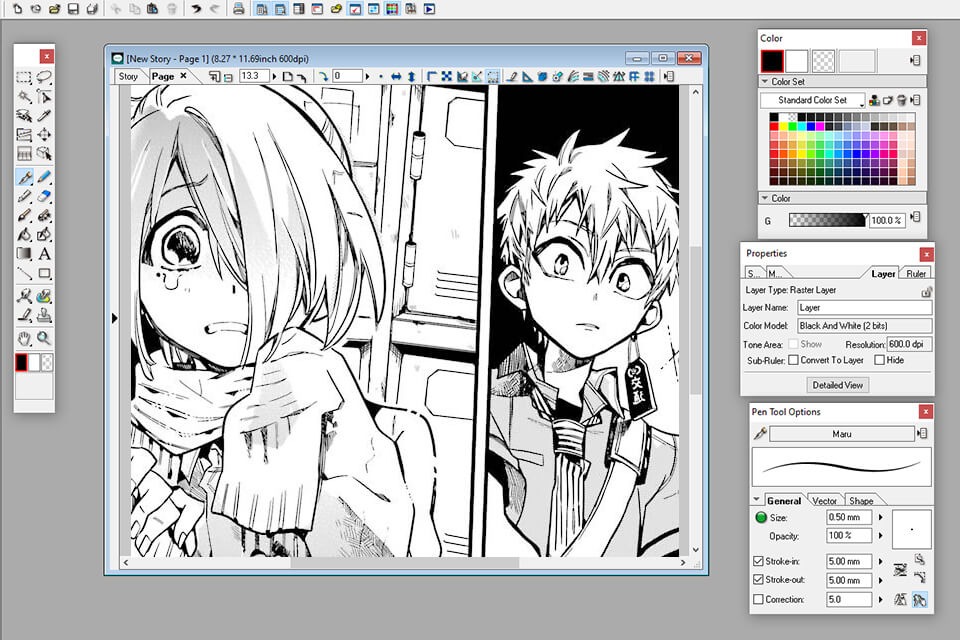
Several established apps support manga creation, each with its own tools and interface.
| Application | Manga-related features | Reason to try it | Catch |
|---|---|---|---|
| Clip Studio Paint | Editable frame-border folders, comic-page tools | Dedicated panel building and page production | PRO and EX differ in multipage management |
| MediBang Paint | Comic templates, panel division, screentones, text | Manga-focused editing and page building | Some cloud, account and premium features have restrictions |
| Krita | Free, open-source drawing with vector-based comic templates | Familiar desktop drawing workflow with comic templates | Frame workflow differs from dedicated comic software |
| Procreate | Drawing tools, layers, Page Assist | Fits an existing iPad drawing setup | Multipage navigation differs from dedicated frame-border editing |
| ibisPaint | Frame Divider, screentones, text | Manga production on a phone or compatible mobile device | Screen size and interface comfort matter for complex work |
Krita's manga templates use vector layers, so a Krita artist can try sequential work in a familiar app. Template-based construction differs from Clip Studio's dedicated frame-border folders. Krita's documented platforms include desktop systems and an Android beta, but not an iPad edition.
On an iPad, Procreate's Page Assist gives you a multipage document and navigation between pages. Clip Studio's frame-border folders do a different job: editing and dividing comic frames within the artwork.
On a phone, ibisPaint's manga-tools tutorial covers frame division, screentones and text. Extensive page editing can get uncomfortable on a small screen.
Know when free tools are enough and when an upgrade earns its cost
Upgrade when a purchase removes a specific obstacle or a recurring burden in your project.
Free software comes in different forms. Krita is free and open-source. MediBang Paint offers manga tools, with differences between local use, account-based cloud services and optional premium features. Those differences decide which functions you can use.
Clip Studio Paint shows how editions can differ:
Clip Studio Paint PRO can produce individual comic pages. EX adds multipage project management, which helps when you're organizing a longer chapter.
Upgrade when one of these happens:
- A missing feature. You need to edit comic frames, handle lettering or finish another required task that your current tool can't do conveniently.
- Repeated slowdowns. The app can finish the job, but organizing or revising many pages keeps costing you time. A feature in another edition may solve it.
- A required export. Your publishing route calls for an output your app can't produce satisfactorily.
A new pen display changes how you interact with the artwork. It can't add missing page-management features to your app.
Costs go beyond the app or tablet price. Depending on your workflow, they can also include subscriptions, peripherals, paper or image capture.
Before you pay, name the task that fails, look up the relevant feature in the official product documentation, and read the license conditions. For Clip Studio, the product lineup lays out the PRO and EX differences.
You can mix paper and digital tools
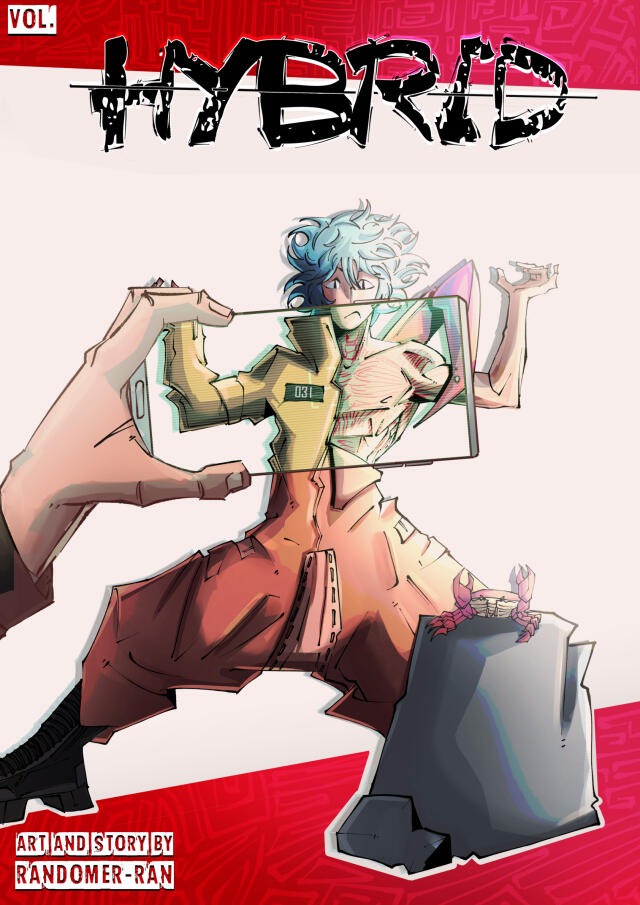
A mixed workflow lets you sketch on a familiar physical surface and finish the artwork in an app suited to manga pages.
In r/Mangamakers, an artist describing that approach wrote, “Then I scan it and I do lineart/colours digitally.”
Test the handoff with one drawing. Sketch it, scan or capture it, import it into your finishing app, and make sure the lines are clear enough to work from. Paper choice depends on your drawing medium, as Canson's guidance on pencil, felt-tip and ink shows.
This adds capture, cleanup and alignment work, and you still have to assemble and deliver the finished comic.
Use one sample page to test the entire workflow
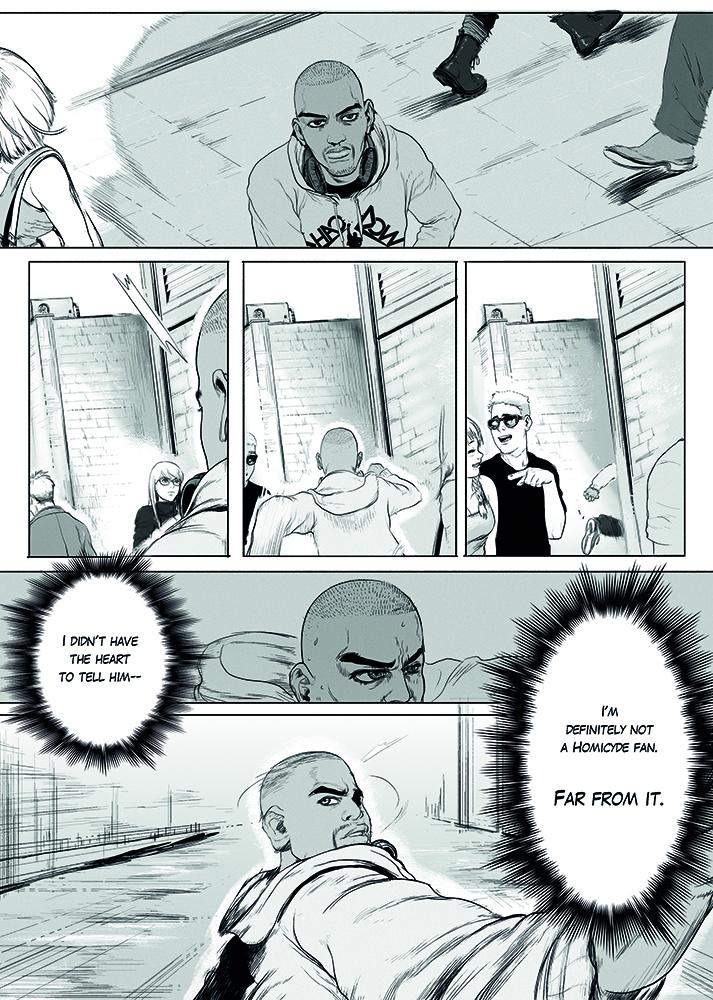
A short sample page shows the difference between an app that feels pleasant to draw in and a setup that finishes a comic.
Pick one original scene with several panels and a line of dialogue. Keep the story simple so you can focus on the process.
Make the sample page
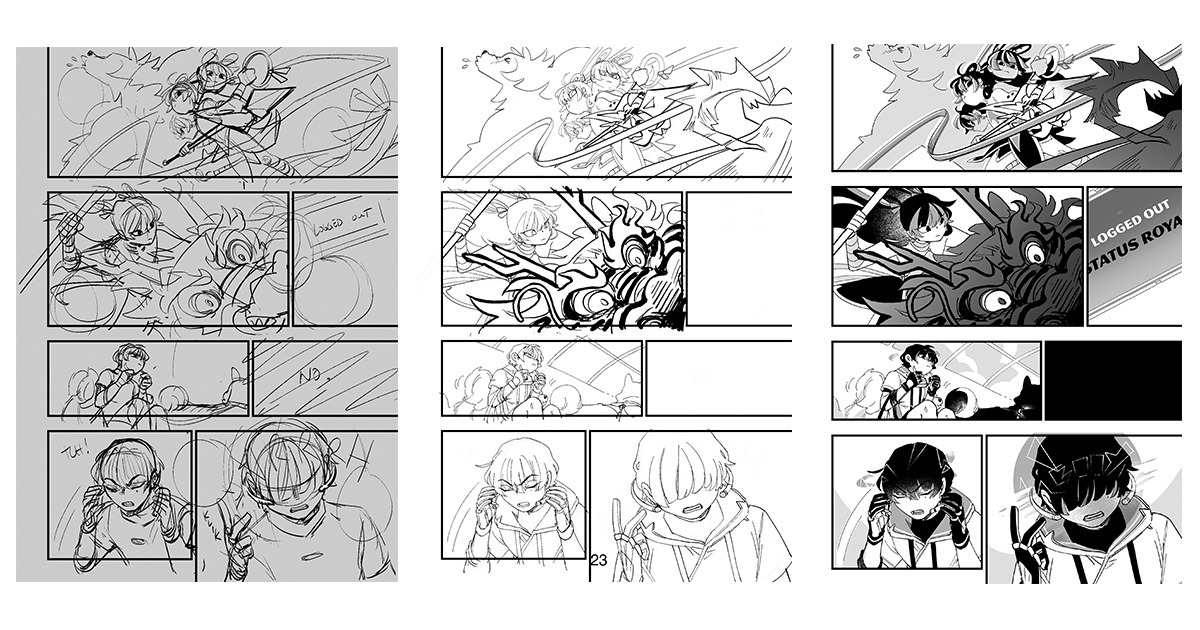
- Rough out the scene. Divide the action into several readable moments and decide where the dialogue goes.
- Build the panels. Use the app's frame, vector or layer process, then change a border or gutter to see how revisions work.
- Develop the artwork. Draw or refine the images, watching line control, erasing and layer organization.
- Place the dialogue. Add the line of text and a balloon if the scene calls for one, then move it. Note whether the page stays comfortable to edit.
- Apply the intended finish. Use monochrome tones, shading or color to suit the project, and make sure neighboring shapes and characters stay distinct.
- Record the problems. Mark each task as straightforward, workable with a workaround or stalled, and note what caused the difficulty.
Rate each task as one of these:
- Straightforward: You finished and revised it without a meaningful obstacle.
- Workable with a workaround: It's possible, but a manual step or interface limit got in the way.
- Stalled: You can't complete a required task acceptably with this setup.
If you finish the inkwork comfortably, then get stuck revising speech balloons, the problem is the lettering tools. If you struggle to control strokes on a screenless tablet, the problem is the input setup.
One page exposes obvious workflow problems. It can't show how convenient the app stays across a long series.
Open the exported file before committing to the tool
Your page has to survive the move from editable project to a file another person or publishing service can use.
MediBang Paint's native .mdp format holds manga project data, and its documented publishing workflow exports to formats such as JPEG, PNG and PSD. In the MediBang manga publishing tutorial, the Export All procedure merges layers when converting pages for delivery. MediBang's separate Save workflow can preserve layer and text information in PSD files, though some MediBang-specific features aren't retained.
Test the final file
- Preserve the working project. Keep an editable copy, such as the original
.mdpproject, before any conversion that could flatten layers. - Choose the delivery format. Pick a file type your app supports and your destination accepts, and decide whether batch or multipage handling matters.
- Export and reopen the page. Open the file outside the editor and inspect panel edges, small dialogue, fine line art and tones at the size your audience will see.
- Match the receiver's requirements. Use the printer's or publishing platform's specifications for dimensions, accepted formats and other conditions. Print manuscripts, page-based online comics and vertical-scroll episodes each have different ones.
Choose a setup for your situation
| Your situation | Start here | Relevant follow-up topic |
|---|---|---|
| Beginner with basic drawing supplies | Make a short page with the paper tools you have, and decide how to deliver it | How to make your first manga |
| Comfortable with Krita on a computer | Open its manga templates and build a page | Manga drawing software |
| Already drawing on an iPad | Check compatible iPad apps, including Procreate's Page Assist, against your manga requirements | Making manga on an iPad |
| Smartphone-only creator | Try ibisPaint's frames, tones and text | Making manga on a phone |
| Traditional artist who prefers paper | Keep the sketching stage and finish digitally where it helps | Traditional and digital manga workflows |
| Creator producing a longer chapter | Check whether specialized comic features, including EX, would cut repeated page management | Clip Studio Paint versus MediBang Paint |
| Creator considering new hardware | Pick the hardware category before comparing individual models | Drawing tablets for manga |