Make your first webtoon as one short, complete vertical-scroll episode. Storyboard it, finish the art and lettering, and check the exported result on a phone before you publish. If the preview is unclear or the workload is more than your time allows, revise or shrink the pilot. Once it passes, publish or schedule it through your platform's creator tools.
Start with a webtoon you can finish
For a first webtoon, pick one small story you can finish, from sketch to published episode. You need a character who wants something, an event that changes the situation, and an ending that rewards the reader for scrolling.
A vertical-scroll comic reveals its panels as the reader moves down a phone screen. A fixed-page comic can show several panels together and can use a page turn as a reveal. WEBTOON CANVAS is a publishing service for comics. The term webtoon also covers a broader format.
Use this original practice scene: a musician stands outside a closed practice-room door, certain an audition went badly. A shadow moves inside. Just as the musician reaches for the handle, a folded note slides out beneath it. The note reads, "You're in."
Black-and-white or limited color is fine. You don't need a set panel count or a cliffhanger. Pick your reading format and your publishing platform early, because both shape the files you prepare.
Write the scene before drawing panels
Write only what the artist draws and the reader reads. A few story beats are enough for a first episode.
| Beat | What the reader sees | Text or sound |
|---|---|---|
| Expectation | Musician outside a closed door, gripping a guitar case | "I blew it." |
| Interruption | Movement behind the door, then a note emerges underneath | A soft rustle |
| Revelation | The musician opens the folded note | "You're in." |
Those beats become five shots:
- A wide shot shows the musician, guitar case, hallway and closed door.
- A close-up shows the musician's hand reaching toward the handle.
- At floor level, a folded note slips through the gap beneath the door.
- The musician crouches and picks up the note, keeping its message hidden.
- A close-up of the paper opening reveals "You're in."
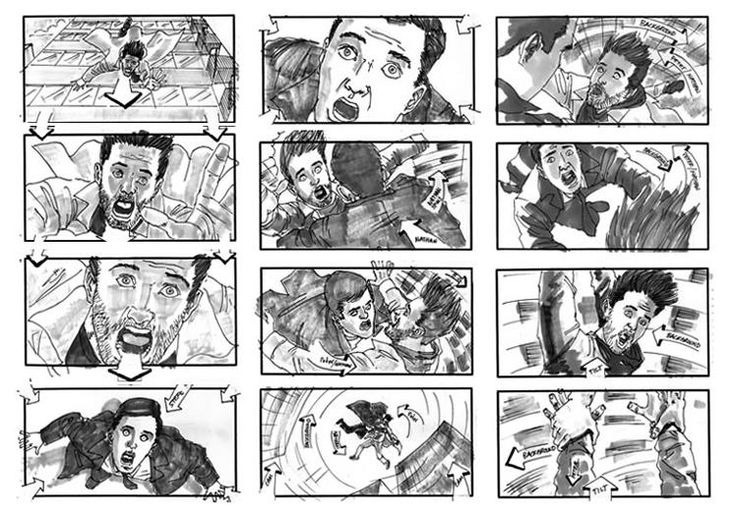
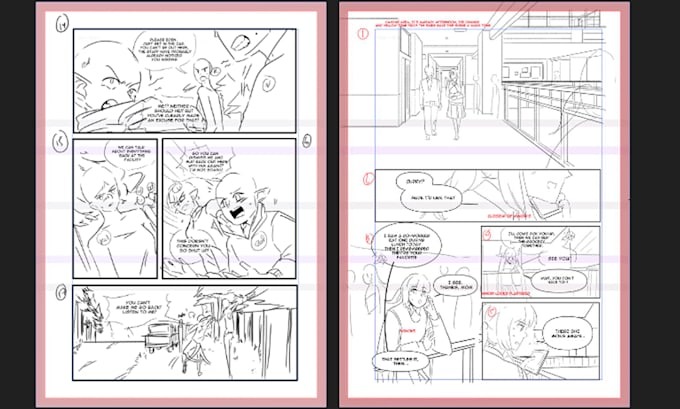
Sketch those shots as rough rectangles with stick figures, camera angles and space for balloons. The story is cheap to change at this stage. A missing action, such as the note jumping from the floor into the musician's hand, shows up right away in the sequence.
When a writer works with an artist, approve this rough strip together before finished drawing begins. The storyboard shows who appears in each shot, where the dialogue goes and exactly when the reader sees the message.
Design the scroll
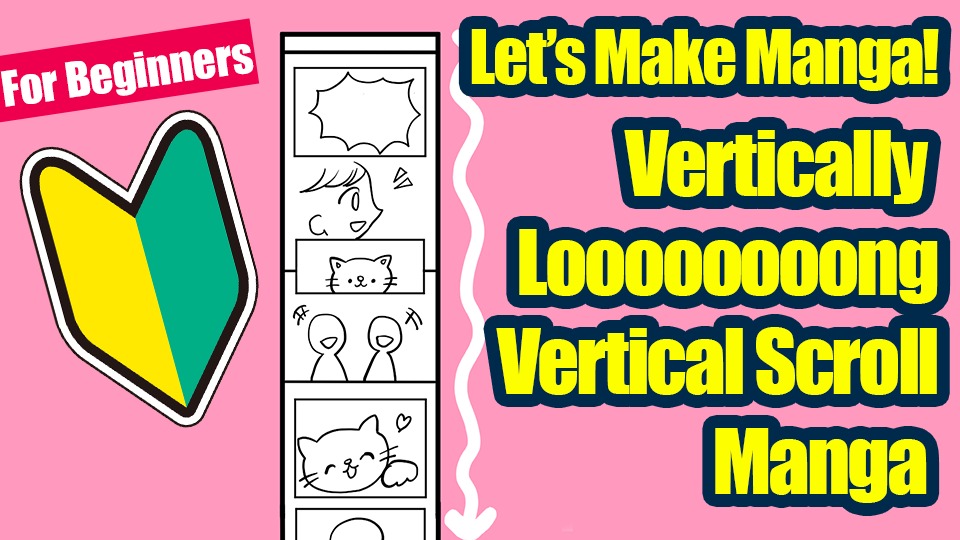
Vertical spacing controls when the next image appears on a reader's screen. Use it to separate a quick action from a pause and to hold the answer to a visual question until the right moment.
Reveal in the same screen
If the approaching hand, the note and the words "You're in" sit close together, the reader sees the answer while the musician is still reaching for the door. The scene makes sense, but the suspense is gone.
Reveal after a scroll
Now put the hand and the slipping note on the first screen and hide the message. Leave enough vertical space that the unfolded paper comes into view on a later scroll. The reader discovers the result along with the musician.
Short gaps suit continuous motion or rapid conversation. A wider pause suits an important discovery. Very long empty stretches make ordinary actions tedious to scroll. Clip Studio Paint's vertical-webtoon guide covers the phone viewport and how the space between images changes the reading experience.
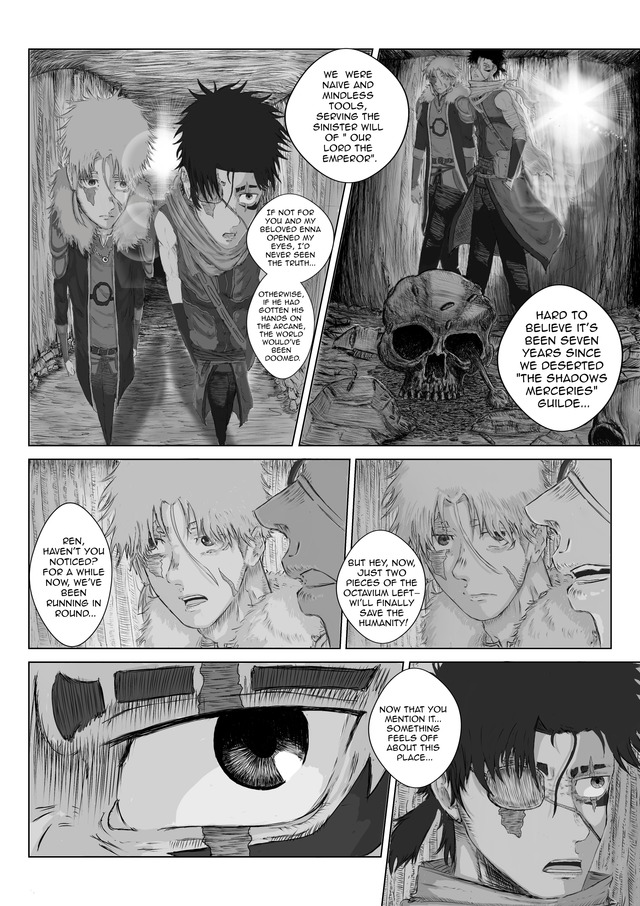
For English-language dialogue, place balloons and reactions in reading order as the page moves downward. A tall image lets the reader travel through one continuous setting. Separate panels make changes in camera angle, place or moment easier to spot.
Scroll both rough layouts at your intended viewing width and keep the one where the pause and the discovery land where you want them.
Choose a drawing workflow and a working canvas
Choose tools that handle a small editable comic, legible lettering and usable exports on the device you own. Clip Studio Paint, Krita and MediBang Paint all work for webtoons.
You can build the episode on one long canvas or in several shorter segments:
- Long editable canvas: It makes the overall vertical sequence easier to see, but large files can strain some devices.
- Shorter working segments: They're easier to handle separately, but you have to watch the joins and the story's continuity when you assemble them.
A large editable master gives you room to draw and revise. Exports can be smaller, because the publishing service only has to display the finished work. For screen images, pixel width and height determine the delivered pixel count. DPI metadata alone does not set on-screen sharpness.
Clip Studio Paint has an “On-screen area (webtoon)” preview and dedicated webtoon export tools.
Make one small test panel, save it with editable elements, reopen it and export a separate image. It shows whether your device and software cope before you commit to a full episode.
Make the artwork consistent without overbuilding it
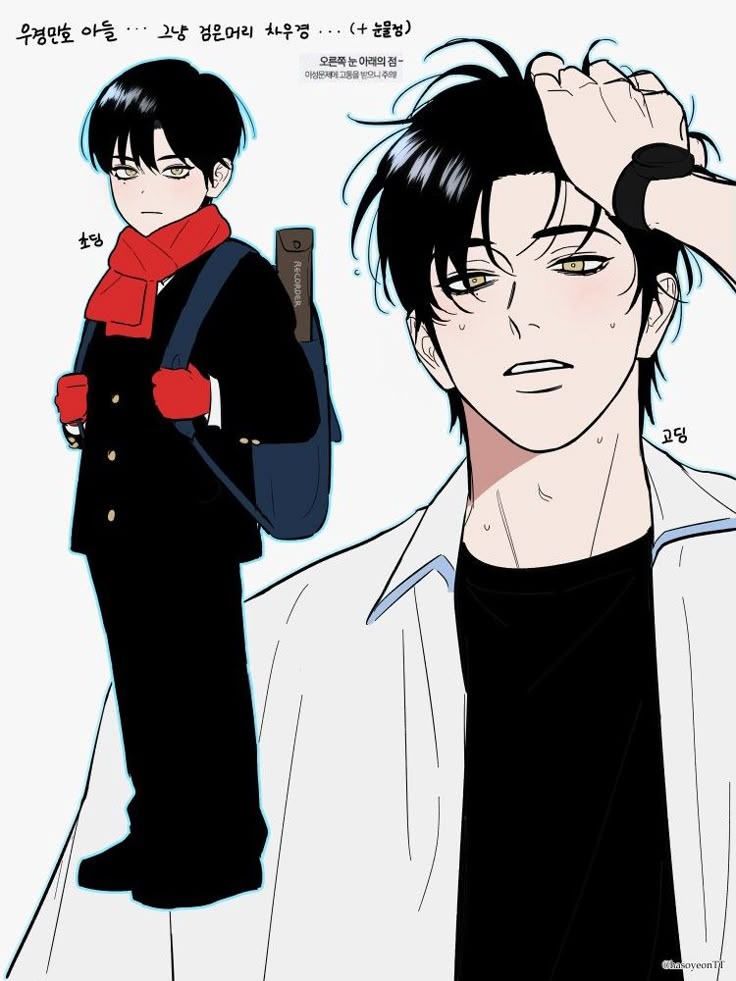
Give the musician a reference showing the hairstyle, coat, guitar-case shape and a few expressions. Then sketch the practice-room doorway from the angles the scene needs.
Draw from roughs to clean lines and add color or tone where it helps the story. Any reused background or prop assets should be yours or properly licensed.
Keep the character recognizable in the wide hallway shot, the hand close-up and the reaction to the note. Look at those recurring details across three panels before you spend time on decorative detail that will disappear on a phone.
Letter for the phone screen
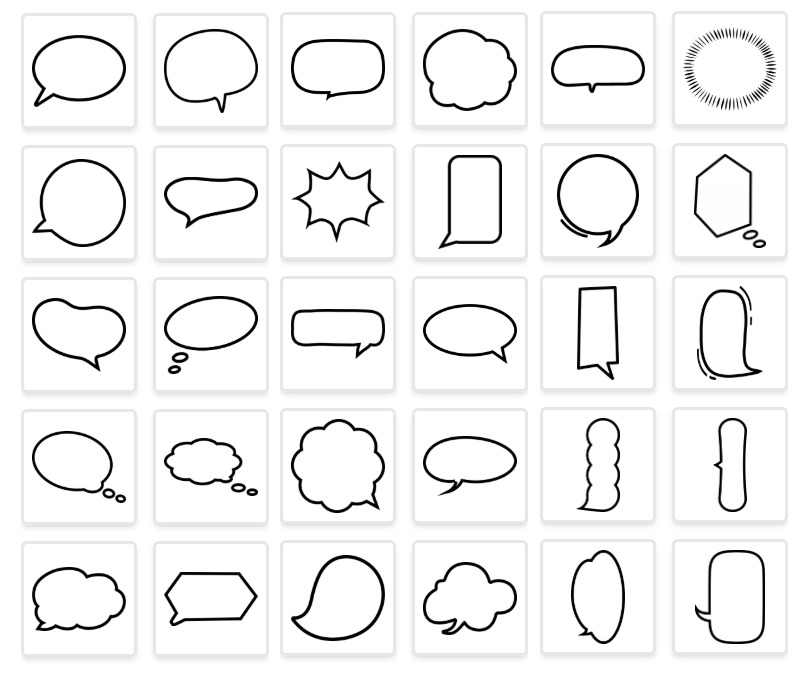
Lettering belongs in the composition from the start. A balloon that fills the editor window at high zoom can look cramped at phone width.
Put "I blew it" with the musician's waiting shot. Reserve "You're in" for the final close-up of the unfolded note. The distance between those lines is part of the story. A balloon that appears too early spoils the visual reveal even when the drawings are in the right order.
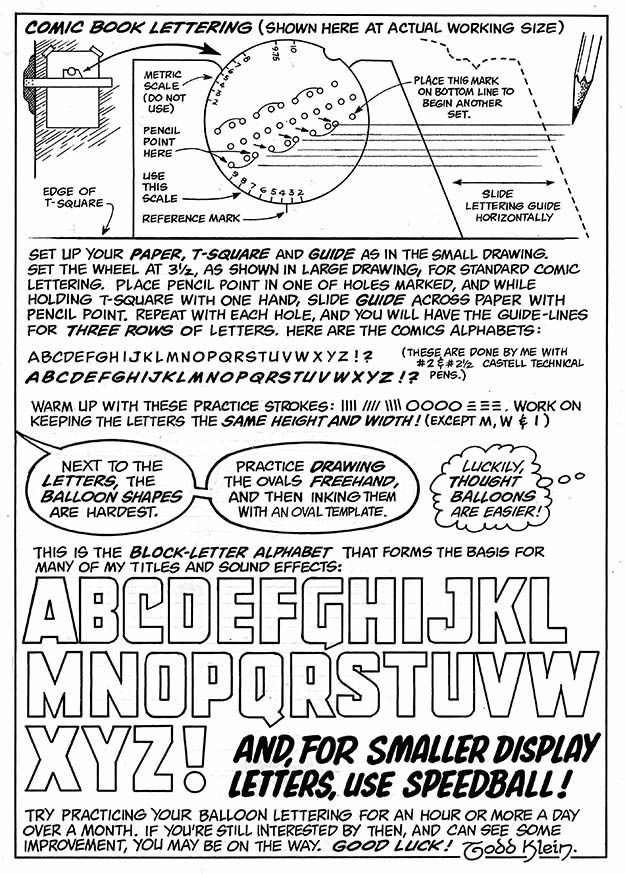
Leave a margin between the text and the balloon edge, keep the contrast strong, and place each speaker's words along the reading path. If a balloon covers the artwork, add a panel. Split long speeches where the thought changes.
Read the lettered episode at phone size without zooming in. Follow each balloon in sequence and make sure every word is comfortable to read.
Export the episode without damaging the artwork
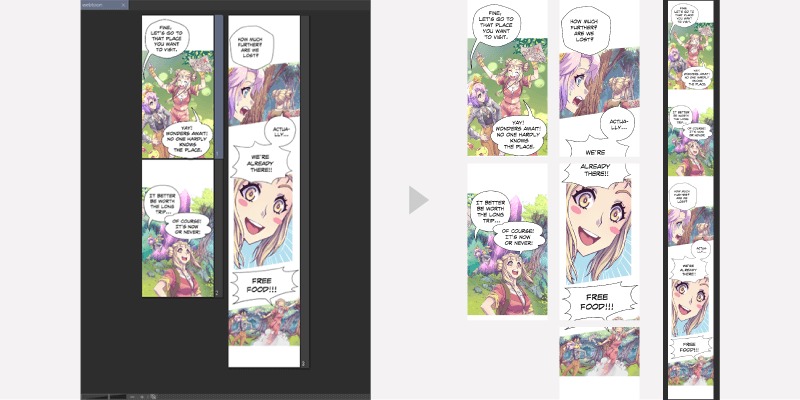
The editable drawing, the image you export, the file the publishing service accepts and the picture a reader sees are four different states. When an image looks distorted or soft, compare them one by one.
| State | What it contains | What to inspect |
|---|---|---|
| Editable master | Original artwork and working elements | Clean lines, layers and the planned layout |
| Exported file | Prepared flat image or numbered slice | Width, height, proportions, text and edges |
| Uploaded file | Artwork accepted or processed by the platform | Which parts were accepted and their sequence |
| Reader display | Rendered image in a browser or phone viewport | Apparent sharpness, crop and reading size |
In Clip Studio Paint's WEBTOON-oriented export example, prepared segments are 800 pixels wide and up to 1,280 pixels high. Those are example upload dimensions for WEBTOON. Other platforms set their own limits.
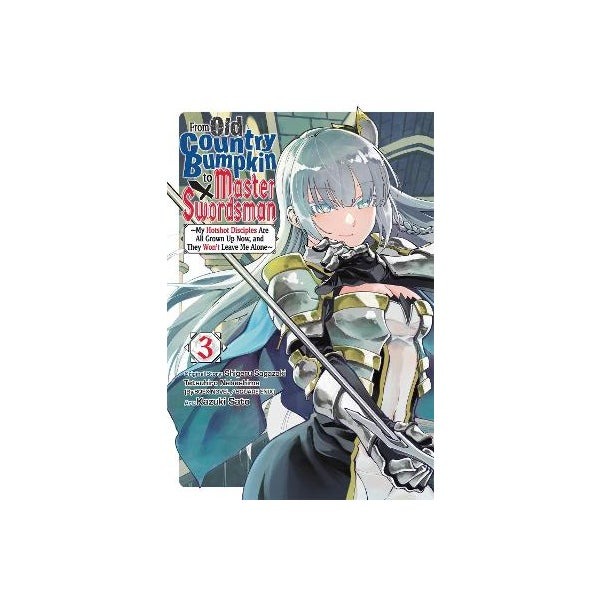
Keep proportions unchanged when you reduce an image. Forcing a wide drawing into a mismatched width and height stretches faces and balloons, and cropping removes whatever falls outside the crop. To control the breaks between panels, export numbered segments yourself. WEBTOON also described automatic optimization and slicing of long uploads in a 2021 platform notice. If you use an automated upload, use the platform preview.
PNG and JPEG trade file size against visible image quality differently. Choose a format the platform accepts.
When the saved image looks fine but the upload looks soft
A beginner in r/WebtoonCanvas described the difference between a crisp local file and its uploaded appearance:
I'm new to WEBTOON (and making comics, really). Whenever I upload my work to WEBTOON, it seems to be blurry, especially compared to other works in CANVA. I use Medibang and initially work with 9375px width, then shrink images to 1600px, then upload. Am I overreacting to the resolution? Am I doing something wrong?
The file of the image, the one I uploaded to WEBTOON from my folder (1600-width PNG), is pristine.
The author reported a difference between the saved PNG and the platform preview. The cause was unresolved. To find where your version changes, compare the same detail in a small sample at each stage:
- Open the exported image outside the drawing editor at its display size and look for blur, distortion, clipped edges and unreadable dialogue.
- Compare the export with the editable master. If the difference is already there, look at your export and scaling choices. If it appears only in the uploaded preview, look at the processed output and display conditions.
- Change one setting in a new test export and compare the same region again before you redo the full episode.
Preview the whole episode and protect your files
Read the complete uploaded sequence in the platform's preview, from the first panel to the final message. WEBTOON CANVAS offers both PC and Mobile previews, and its WEBTOON CANVAS episode-preview guide lists several problems to catch before you publish.
- Sequence: Confirm that every image appears in the right order, with no missing movement and no duplicated segment.
- Unwanted marks: Look for hidden guide lines, unfinished layers, opacity errors and rough sketch remnants in the rendered images.
- Spacing: Make sure the panel gaps set the reading rhythm you want and don't interrupt a continuous action by accident.
- Clarity: Make sure dialogue, line work and important objects stay visible in the final preview.
In the musician example, say a faint construction line shows up behind the finished note after export. Fix the source file and replace that image before you publish.
Keep a backup of the editable project, separate from the publication files. One episode folder holds the source project and exports named episode_01_001.png and episode_01_002.png. Open a saved copy of the project to confirm the backup works. The final PNG files alone don't keep editable text or original layers.
Publish and choose a schedule
A finished episode needs series information and separate publishing assets. On WEBTOON CANVAS, the publication flow runs through the website's creator tools: sign in, set up the creator identity and series, enter a title and summary, select up to two categories, then prepare the episode.
WEBTOON requires different images for a series listing and an individual episode. The WEBTOON thumbnail guidance, updated July 22, 2026, specifies:
| Thumbnail type | Dimensions | File-size limit |
|---|---|---|
| Square series thumbnail | 1080 × 1080 px | Under 500 KB |
| Vertical series thumbnail | 1080 × 1920 px | Under 700 KB |
| Episode thumbnail | 202 × 142 px recommended | Under 500 KB |
The guide accepts JPG, JPEG and PNG thumbnails and specifies English letters and numbers for episode-thumbnail filenames. Thumbnail dimensions apply to promotional images. Episode art follows its own export requirements.
The WEBTOON publishing process also requires the content-rating questionnaire and an assigned rating. The WEBTOON CANVAS publishing instructions cover series setup, episode upload and the choice to publish or schedule.
Choose a release interval from measured work
In an October 2023 creator article, WEBTOON recommended launching with three episodes and left the number to the creator. For a first pilot, finish one complete episode before you commit to a release rhythm.
Record the time you spend on scripting, thumbnails, artwork, lettering, export and final review. Add those up to get your production time for the pilot, then compare it with the hours you can reliably give comics each week. If an episode took 12 hours and you have 6 hours a week, that's 2 weeks per episode. Plan around your own measured numbers, not an assumed industry average.