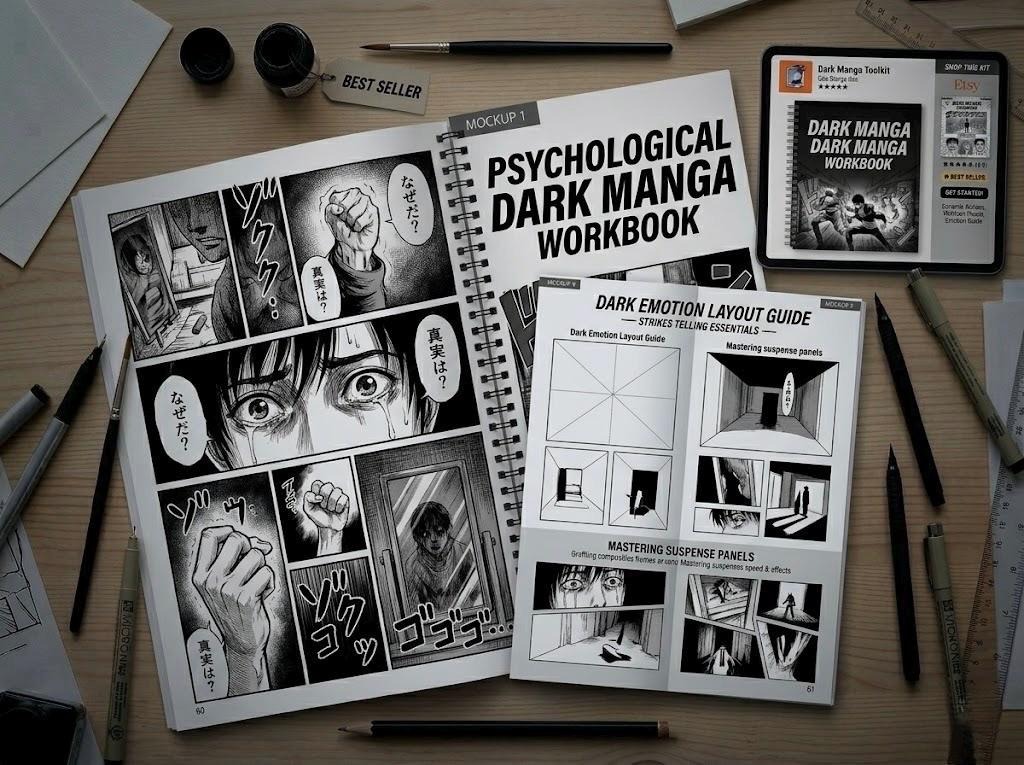
For black-and-white manga, ink the drawing and lay down the solid blacks first. Then add editable screentones where they improve the image. Print needs the printer's specifications and a physical proof. Online artwork does well with grayscale or deliberately coarser dots. Finish and inspect one original panel at its final reading size before you apply the workflow to a whole chapter.
Ink, fill, tone, then judge the result
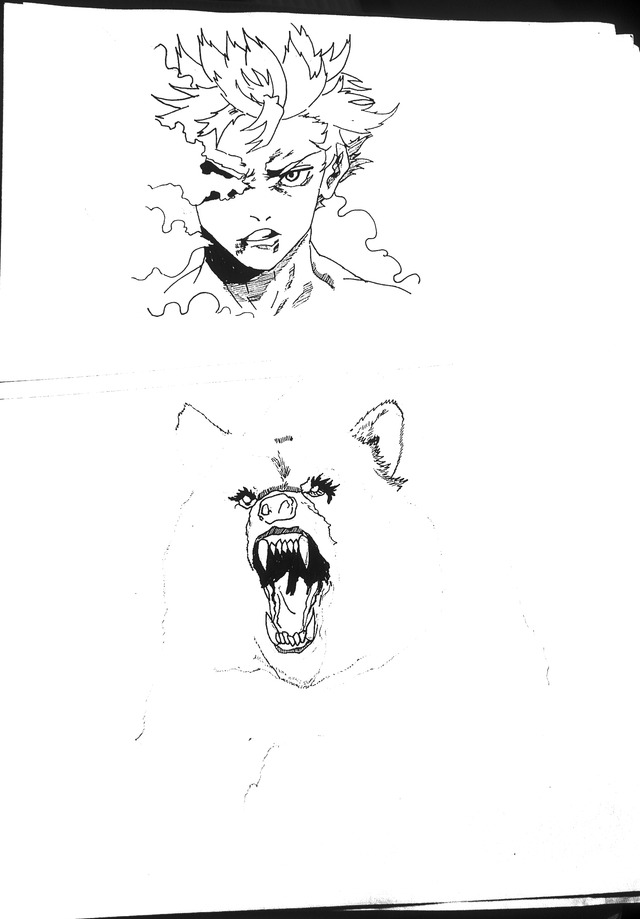
Start with a penciled panel whose drawing and composition are settled. The sequence is pencil, inked contours, solid-black areas, selective tones, and final output. On paper you work with ink and physical tone sheets. Digital tools keep lines and patterns on separate editable layers. Before you begin, write PRINT, SCREEN, or BOTH on your working file or manuscript notes. That choice decides how you prepare the finished tones.
Inking with clean contours and variable line weight
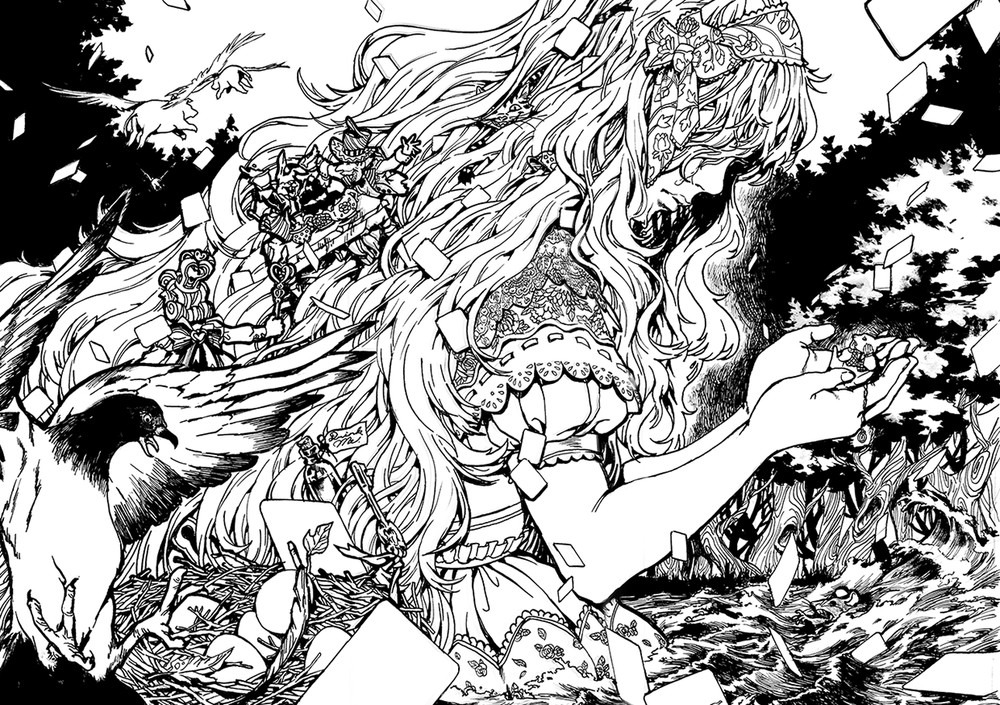
A good ink pass interprets the pencil drawing. It gives the important shapes clear edges and separates overlapping forms. Secondary details stay quiet so the subject reads. Tracing every exploratory pencil mark carries the sketch's uncertainty into the ink.
Digitally, keep the rough drawing beneath a separate ink layer. On paper, draw the pencil lightly so the final contours stay visible. Ink the major silhouette and the lines that set the figure's shape first. Overlapping forms, clothing folds, hair, and smaller textures come after.
Line weight sets how strongly each mark competes for attention. In an original panel of a character standing in a room, a stronger contour around the character separates the figure from the lighter lines of the furniture. Give distant objects quieter edges so they recede without disappearing.
Before you ink the actual panel, draw a three-stroke test strip:
- Thin detail stroke: A light, controlled line for small interior forms or a distant object.
- Main contour stroke: A continuous line with enough visual presence to define the character's silhouette.
- Heavy emphasis stroke: A thicker mark with a clean taper or controlled ending, for a strongly emphasized edge.
View the strokes at the panel's viewing size and choose a clear line hierarchy from them. No fixed width ratio applies.
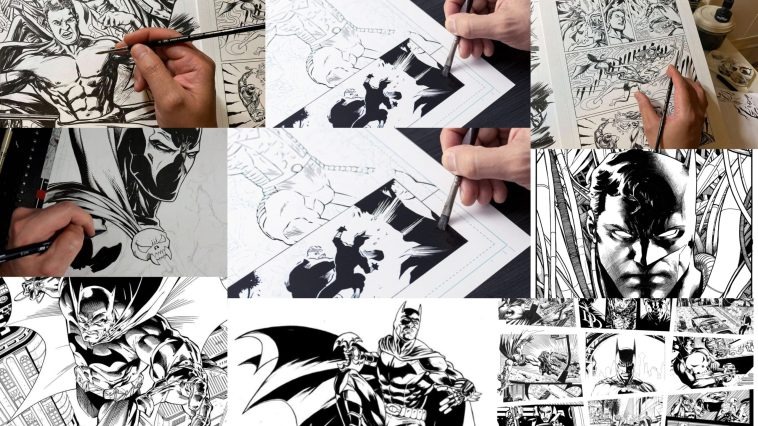
For digital inking, set a pressure-sensitive brush to widen strokes under heavier pressure and taper them as pressure eases. Editable line layers, including vector options where supported, make later adjustments easier.
On paper, pen nibs and brushes give different strokes. Work in a direction that keeps your hand clear of wet ink, and let heavy marks dry thoroughly before you touch or erase them.
Canson's traditional manga inking guidance recommends keeping a spare sheet of paper beneath your drawing hand to protect the artwork.
Clean up accidental gaps, heavy edges, and smudges now. A clean contour is easier to judge before patterned shading competes with it.
Build the values before adding screentones
Screentones give you intermediate values and textures. A panel still needs a convincing arrangement of white and black before it needs dots. The focal subject, the major shadow shapes, and the open white areas decide where attention goes.
Manga artists call a solid-black fill beta. It sets deep shadow, black hair, or emphasis. Tsuya-beta leaves white patches in a black shape to suggest sheen in dark hair.
In MediBang's black-fill example, a closed contour holds the area to be filled. On a suitable monochrome layer, fill that region with the bucket tool, then repair missed gaps or corners with the pen. Where a dark figure disappears into a dark background, clear a small white separation to restore its outline.
Back in the character-in-room panel, the character wears a dark sleeve with a wall behind it. You can render the sleeve in solid black, drawn hatching, halftone dots, or smooth gray. Each choice changes how the sleeve looks and what it demands from reproduction.
| Method | Visual effect | Useful when | Main limitation |
|---|---|---|---|
| Solid black (beta) | Strong mass and silhouette | Deep shadow, dark hair, emphasis | Heavy fills swallow small details |
| Hatching or cross-hatching | Directional marks and textured value | Form, fabric, rough surfaces | Dense strokes clutter at small sizes |
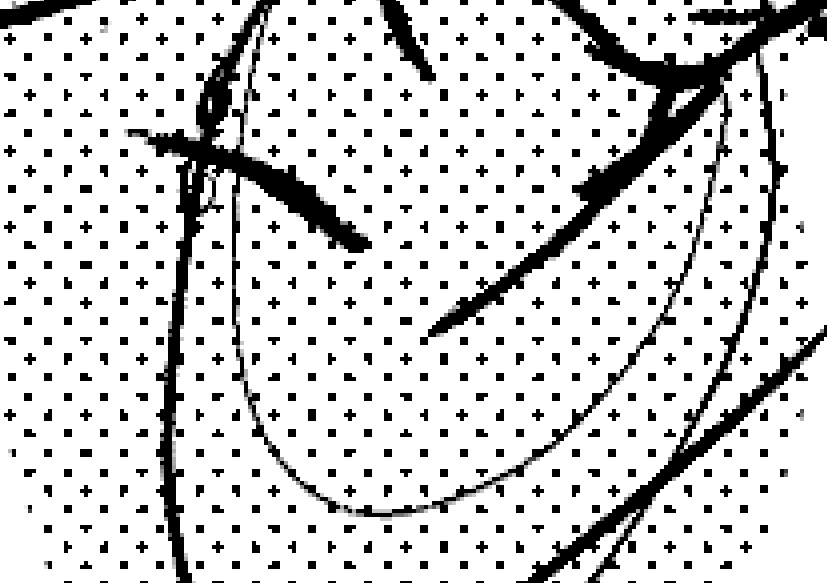
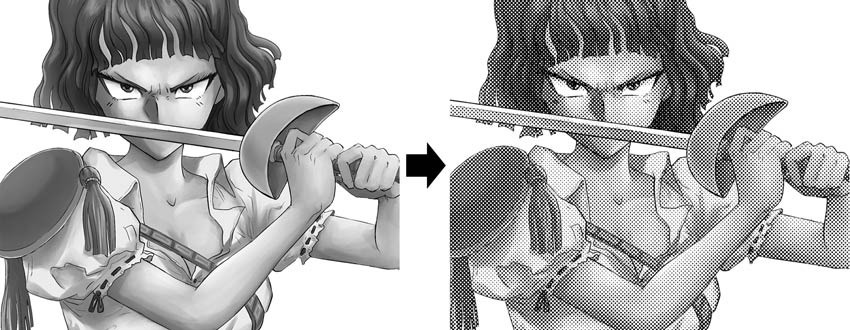
| Halftone dots | Intermediate value with a patterned texture | Controlled shadows and tonal separation | Fine patterns interfere after scaling or overlap |
| Smooth grayscale | Continuous tonal transition | Subtle screen-based shading | Print may screen or convert the gray |
Duplicate the same crop of the sleeve against the wall four times with identical drawing and framing, and leave the wall white in every crop. Render the sleeve once in solid black, once with directional hatching, once with halftone dots, and once in smooth gray. Compare how plainly the sleeve's edge separates from the wall and what each version suggests about its surface.
If the sleeve loses its outline against the wall, simplify the shading or lighten the background. Pick the version that keeps the edge legible at reading size and still conveys the fabric texture.
Traditional screentone sheets on dry ink
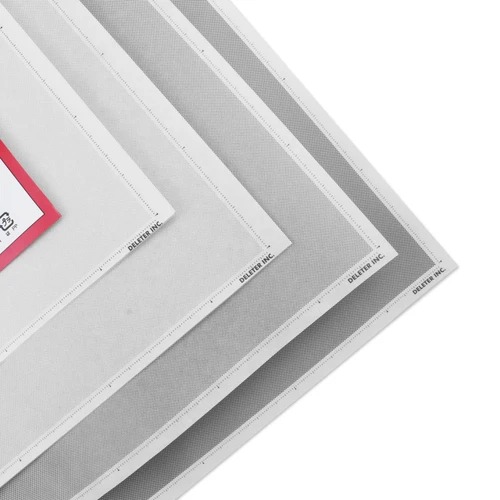
Traditional screentones are patterned sheets applied directly to the manuscript artwork. They give you regular dot patterns without drawing each dot.
If you are learning to work entirely on paper, the order matters. In a r/MangakaStudio discussion, one creator asked, “Also should I ink first before I screentone, or does it really matter?”
Finish the contours and black fills, let the ink dry, and clean up any remaining pencil before you place the sheet. A hand, eraser, or adhesive surface smears wet ink.

Applying a physical tone takes four steps:
- Position the sheet. Place the transparent patterned material over the area that needs shading.
- Follow the contour. Cut the thin sheet with a tone knife, using light pressure so the blade passes through the tone without scoring the manuscript paper beneath it.
- Secure the tone. Press the trimmed section down carefully, keeping its edges within the region you cut.
- Finish the edges. Remove unwanted material and make any small corrections the sheet and tools allow.
Practice on a scrap drawing or a small panel first. Apply one tone patch and inspect its trimmed edges and any overlap.
Apply digital screentones without flattening your working art
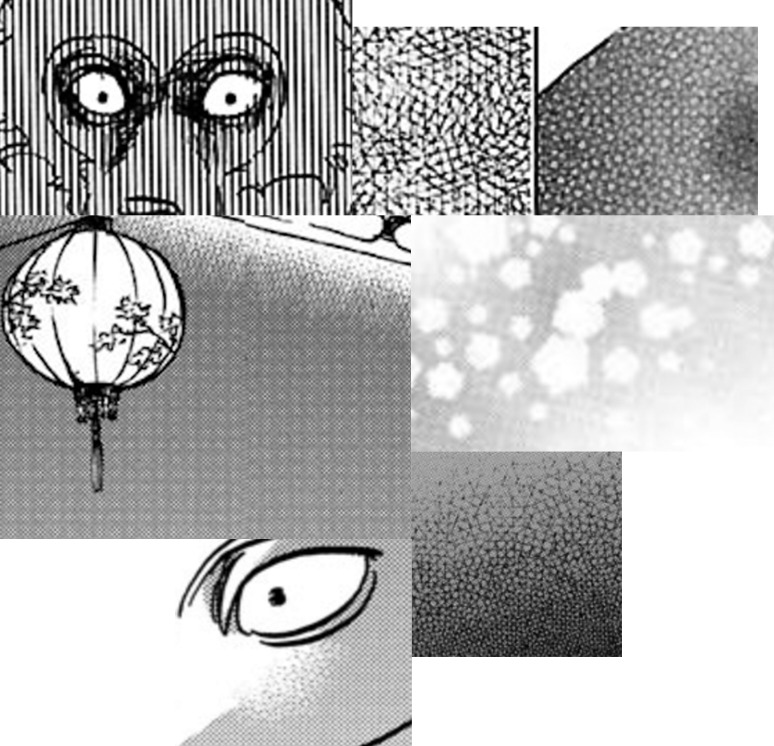
A digital screentone is a patterned layer or effect applied to a selected part of the drawing. Because it stays editable, you can change its density, scale, or visible area without redrawing the ink.
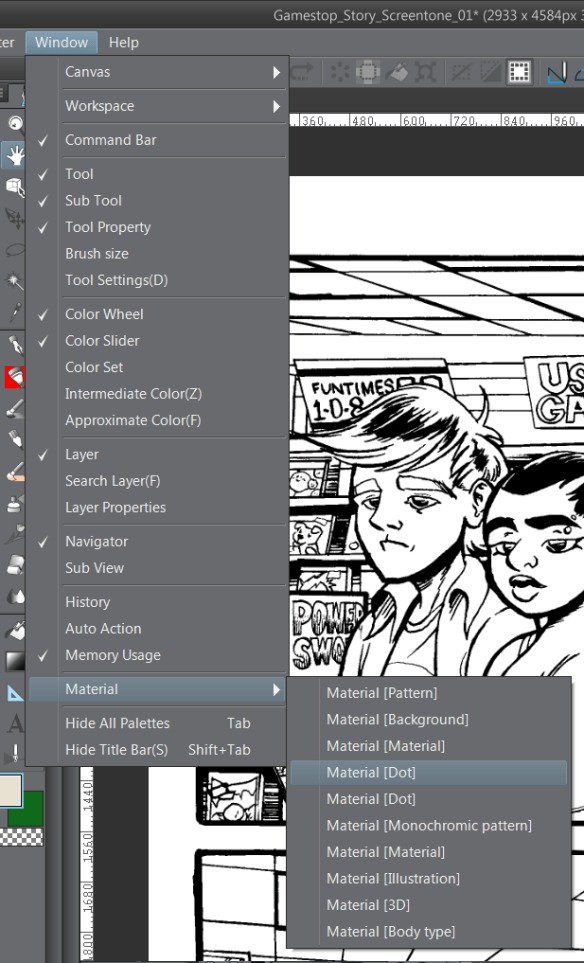
Start with the inked panel and a closed shadow region, then follow your software's steps:
- MediBang Paint: Create a halftone layer beneath the line art. Set its Lines and Density, then paint or fill the selected shadow area with the supported brush or bucket tool. Inspect the edges for missed spots.
- Clip Studio Paint: Select the area to shade, create a Tone layer, set the screen properties, and use its mask to add or remove coverage. Screentones are unavailable in the DEBUT edition.
Keep finished ink and solid-black marks above the tone layer, and keep the rough drawing underneath as a reference if you need it. The tone's region stays independent of the line work, so revisions are easier. Gradient and material tones are other options when the picture calls for them.
Frequency changes the pattern; density changes the darkness
Halftone frequency is expressed in lines per inch, or LPI. In the software examples, L marks the screen frequency. Density is a percentage and sets the apparent darkness of the selected pattern.
The same density can appear at a different pattern scale, and the same frequency can give a different apparent value.
MediBang's beginner screentone tutorial gives examples you can use for a controlled comparison.
| Example setting | Frequency | Density | What changes in the comparison |
|---|---|---|---|
| Reference example | 60L | 10% | Starting pattern and apparent value |
| Frequency variation | 30L | 10% | Larger dot pattern; density stays the same |
| Density variation | 60L | 20% | Apparent darkness increases; frequency stays the same |
These are MediBang teaching settings. Production settings depend on where the work is published.
LPI measures halftone screen frequency. DPI and PPI describe image or output resolution, which is a separate property.
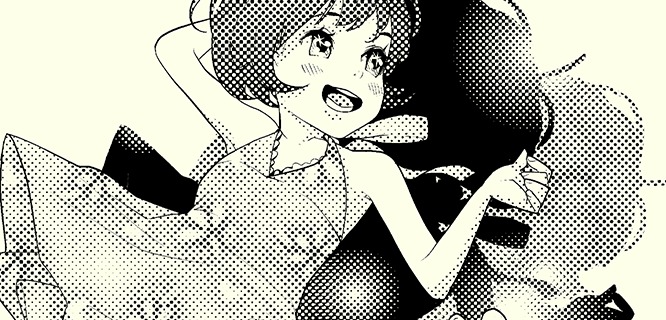
On the same shadow region, make three labeled swatches with these settings, changing one control at a time.
With the pattern on a mask or editable region, you can later remove it from the bright areas or change its coverage.
In MediBang, converting to 1-bpp restricts further adjustment. Keep the layered original and convert an exported copy when you need a flattened image.
You can also convert grayscale to tone, then inspect the pattern it produces.
How do you fix screentone moiré and pixelated dots?
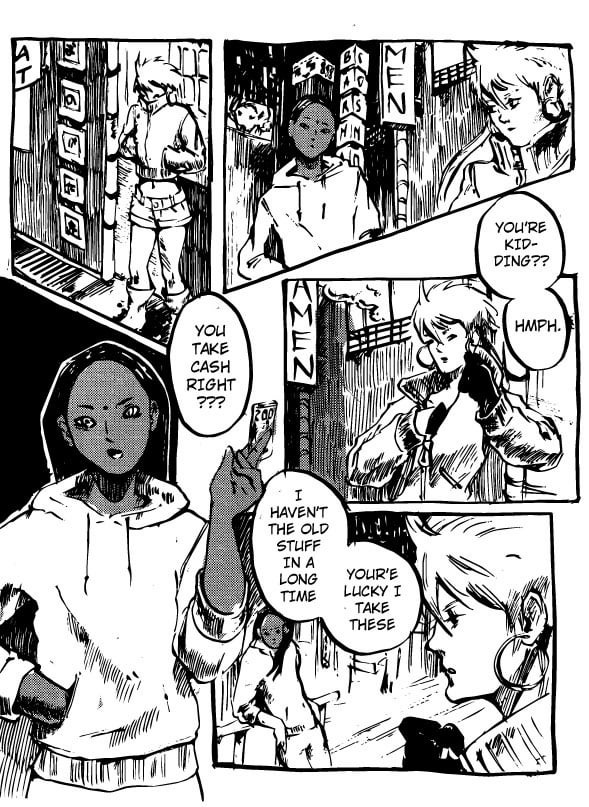
Moiré appears when regular patterns interfere and produce unwanted waves, rings, or broader shapes. In digital manga it comes from overlapping dot screens, mixed tone types, or the way a patterned image is resized and displayed.
Clip Studio Paint's technical support illustrates interference with overlapping 60L and 50L patterns. It also shows tones angled at 45° and 50°. In both cases, the difference in screen properties creates the visible interference.
A r/ClipStudio discussion shows the same trouble. A creator described a visible difference between an export and its editor preview: “left is an exported png. right is my clip studio screen.”
Separate a display artifact from an output defect
A tone can look distorted at reduced or enlarged editor zoom because the editor resamples a fine pattern for display. Clip Studio recommends examining the tone at 100% zoom to tell a preview artifact from interference in the image itself.
An exported image can also contain real interference from resampling, rasterization, or overlapping patterns. If the defect survives in the finished file or the print, correct it in the production workflow.
| Symptom | Cause | Diagnostic check or remedy |
|---|---|---|
| Dots look irregular only at certain editor zoom levels | Display sampling of the pattern | Compare the source at 100% with the exported pixels |
| Wavy rings appear where tones overlap | Interfering frequencies or dot angles | In Clip Studio, match the screen frequency and dot angle of the overlapping tones |
| Dot edges look gray or soft | Antialiasing, opacity, or mixed gray-and-dot rendering | If erasing a Clip Studio tone leaves gray dots, enable mask posterization and apply its effect range to the mask image |
| Fine patterns fade or form blotches after resizing | Resampling at the final dimensions | Compare the export with the original at their respective pixel sizes |
Compare source, export and print
To find where interference first appears, look at three stages:
- Source image: Inspect the working artwork at 100% and look for defects already visible in the pattern.
- Exported image: Open the delivered file at 100% of its final pixel dimensions and inspect the same area.
- Physical reproduction (print only): Compare the print proof with the exported source to see whether printing introduced or amplified the defect.
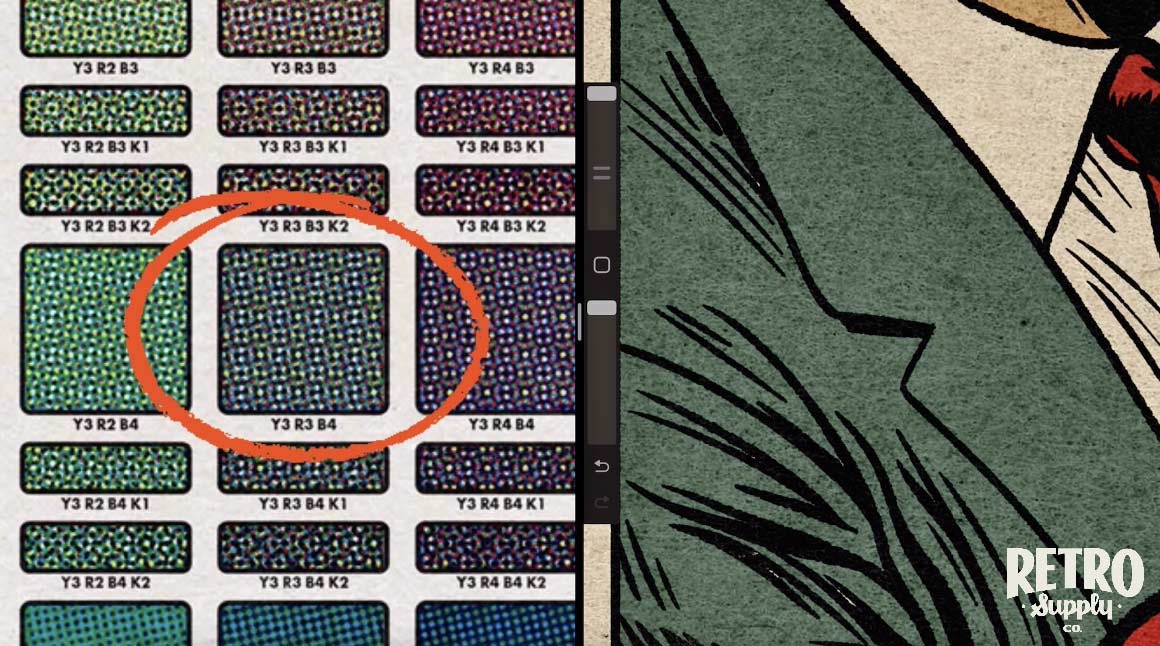
Clip Studio's moiré support guidance describes a “For comic” scaling option for some exports.
Export for print or for screen
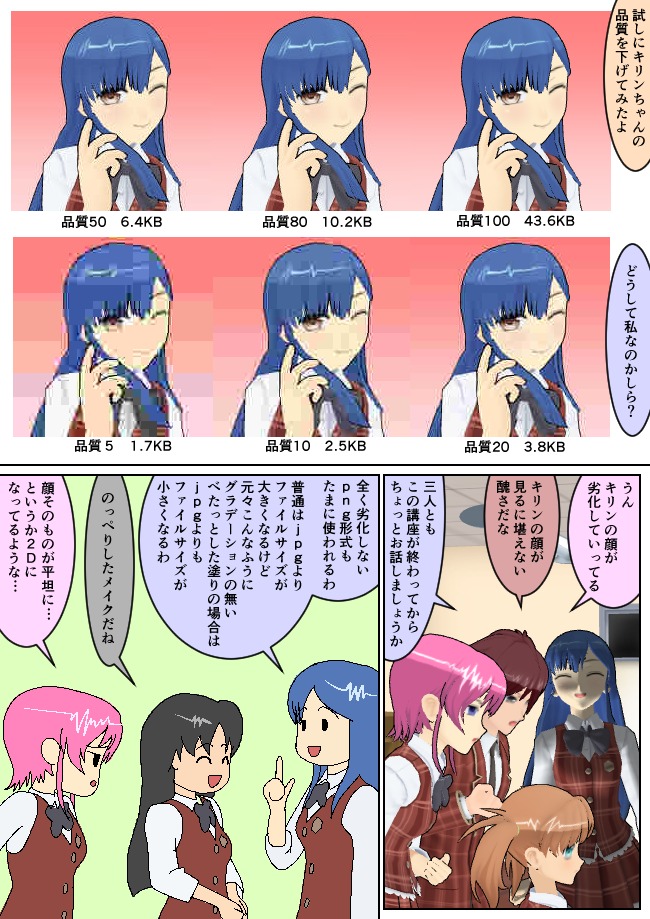
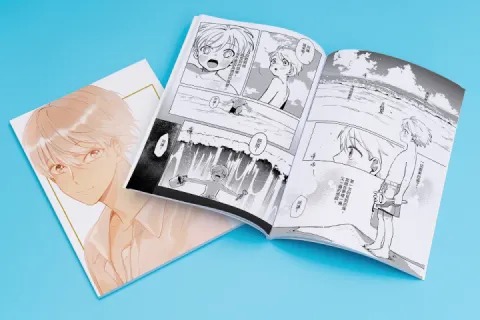
Printed pages and digital displays reproduce image detail differently, so where the work will be read decides the final file.
Preparing artwork for print
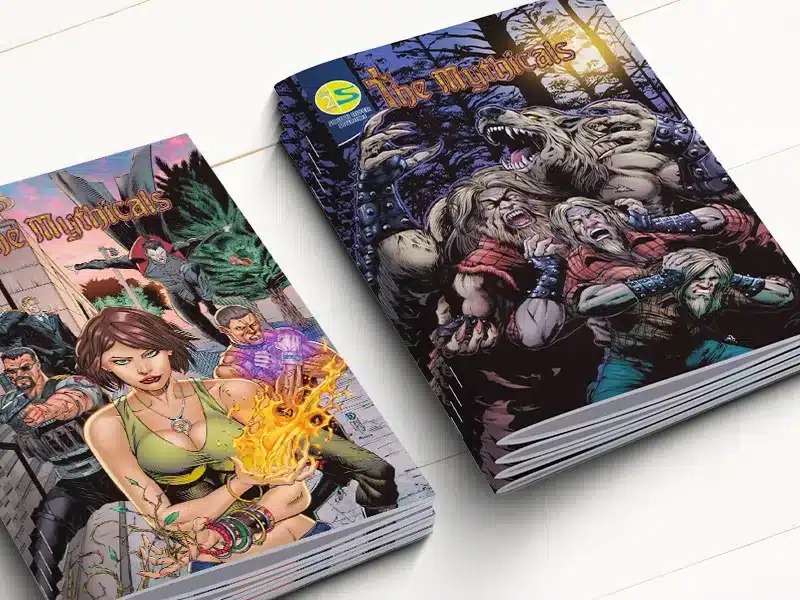
A printer or publisher specifies the manuscript dimensions, output format, and image requirements. For finishing, what matters is how that process reproduces your lines and tonal patterns.
Amazon KDP specifies at least 300 DPI for images in its print-book workflow. That figure covers image resolution. Halftone line frequency is a separate print-production decision.
Canson's traditional manga scanning tutorial describes scanning at a minimum of 300 DPI, preferably 600 DPI in its illustrated workflow. Other manga production examples use different manuscript resolutions.
Changing a file's DPI metadata adds no image detail. The effective image dimensions, the printing process, and the halftone pattern all shape the result.
Preparing artwork for online reading
Fine regular dots can interact with display pixels, especially when you reduce an image for a reading interface.
Clip Studio's support material offers grayscale for digital artwork that does not need visible halftone dots. If the patterned manga look is part of the design, use coarser dots at the final pixel dimensions.
Clip Studio's support guide illustrates visible dots on a small image: a 300 × 260-pixel web image at 72 DPI with 20 to 30 L tones.
| Decision | Online reading | |
|---|---|---|
| Size set by | Printer or publisher's manuscript and image specifications | Finished image's pixel dimensions |
| Tones | Halftones or grayscale processed according to the print workflow | Grayscale or tested visible dots |
| Main concern | Printed contrast, tone interference, loss of fine detail | Pixel resampling, apparent dot noise, reduced legibility |
| How to confirm | Printer specifications and a physical proof | Inspecting the exported image at display size |
Make a separate copy for print and for screen from the layered master. Save each in its specified format and dimensions, then confirm the export contains the grayscale or dot pattern you want.
The menu names in Clip Studio's anti-moiré export tutorial match v1.10.0, in a Japanese manga production workflow.
Proof one panel, then tone the chapter
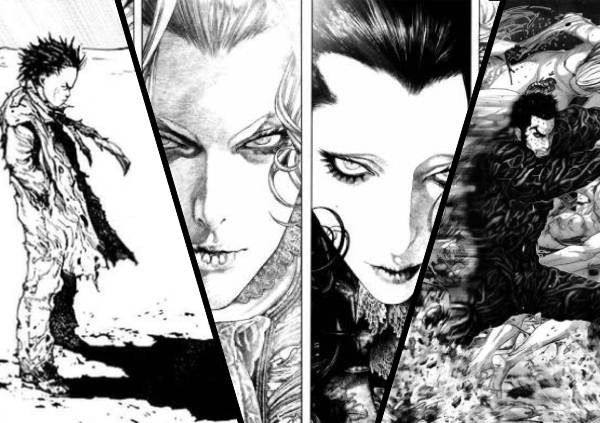
A finished panel has to work as an image, however carefully you chose the settings. At reading scale the character stays distinct from the surroundings, the marks describe the forms, and the tones serve the visual hierarchy.
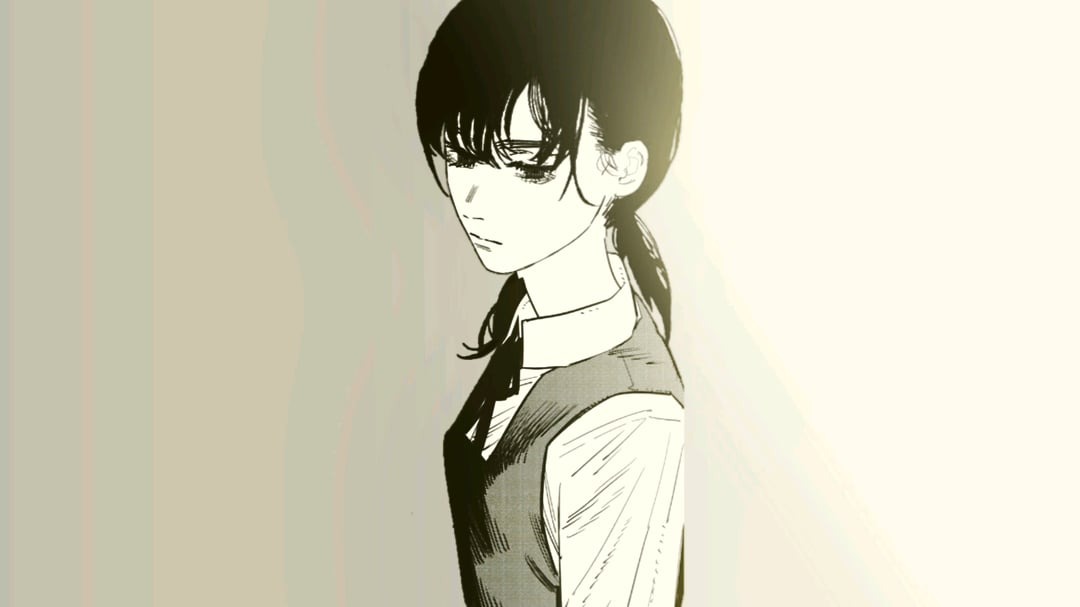
Run one complete panel through this list:
- Silhouette and form: The character and essential shapes stay identifiable at normal reading scale.
- Value separation: Subject and background keep the difference in light and dark.
- White space: Unmarked areas stay deliberate and contribute to the composition.
- Tones: No rings, noisy patches, or pattern interference appear in the output.
- Fine lines: Fine contours and meaningful interior marks stay visible.
- Clean finish: No gaps, dirty edges, or stray marks.
For online artwork, judge the exported panel at a likely reading size, including phone size. For print, study a physical proof.