For your first manga page on Windows or Mac, start with free MediBang Paint or FireAlpaca, or keep Krita if it already handles your work. Consider Clip Studio Paint PRO when its comic tools solve a specific problem. Choose EX when you need integrated multi-page management. On iPad, Procreate offers Page Assist. On supported phones and tablets, ibisPaint and JUMP PAINT offer manga tools. Before paying, make, reopen and export one complete test page.
Which manga drawing software should you start with?
A finished manga page needs panels, artwork, dialogue and room for revisions. A good standalone illustration is a different kind of project. A Krita user on r/Mangamakers asked, “im used to drawing on Krita but was wondering, what would be the best software to draw an actual manga and not just standalone art?” Start with your device, budget and project size. Then narrow the field to two apps that can handle the pages you plan to finish.
Choose by device and the kind of comic you plan to make
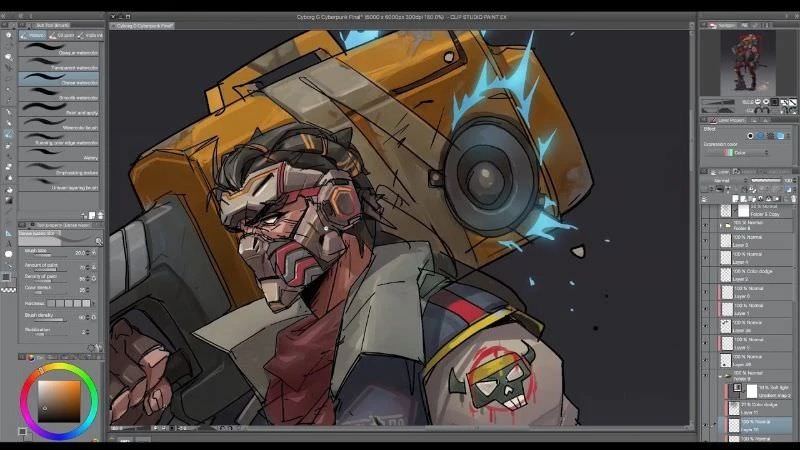
Start with your device. Clip Studio Paint's Version 5.0 perpetual license covers Windows and macOS desktops. Supported tablet and phone editions use separate plans, so a desktop license doesn't cover your iPad.
On iPad, Procreate is a paid drawing app with Page Assist, a multi-page interface, and PDF export. If you already like drawing there, you have a workable comic option. Clip Studio Paint offers a different set of manga-specific production and project-management tools.
On phones and tablets, ibisPaint has a Frame Divider, Screen Tone and Text Tool.
JUMP PAINT is a free download for Windows, Mac, iOS and Android, with manga-oriented pens, panels and tones. MediBang Paint also has supported mobile versions.
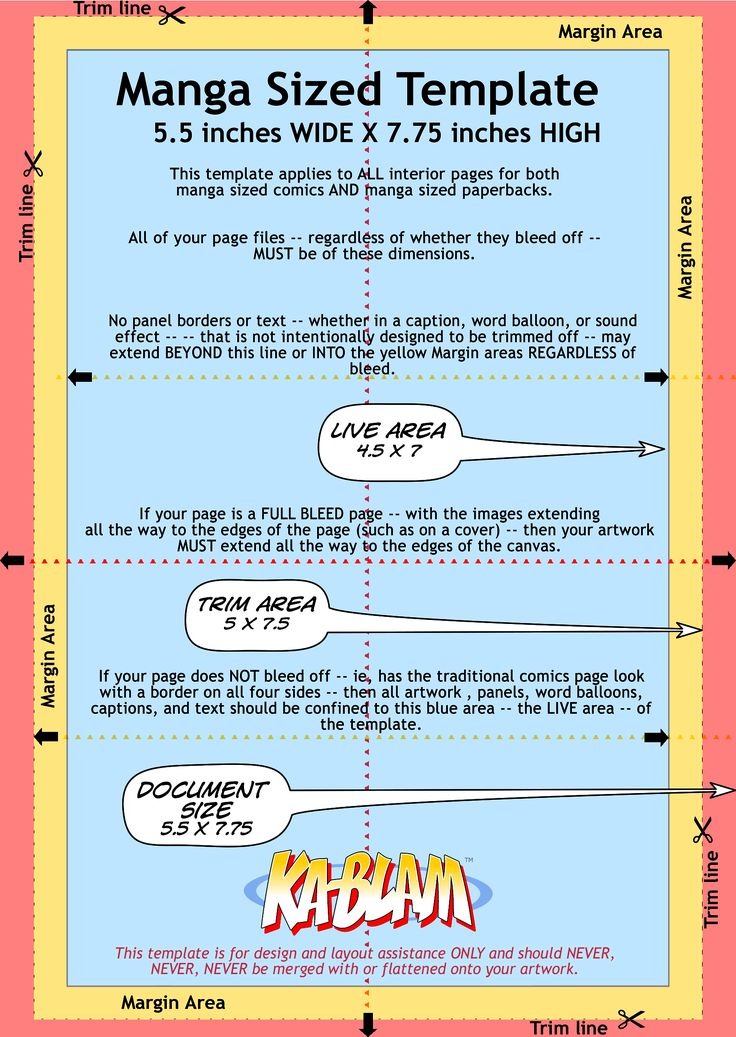
Format matters as much as the screen. Print pages need trim, bleed and a set resolution. A vertical-scroll episode follows the file and image requirements of its destination. MediBang's desktop comic tutorial uses Doujinshi (A5 finished): 350 dpi as one example preset, and FireAlpaca's comic settings include 350 and 600 dpi options. The receiving printer or platform sets the required dimensions for the finished work.
Look up your destination's file format and dimensions before you set up the document. For vertical episodes, the Webtoon creation workflow covers that separate production format.
The manga tools that save work
Two drawing apps show their difference when a page changes. A panel divider, editable layers and movable dialogue save you from rebuilding a composition after the story changes.
Frames that can change after the sketch
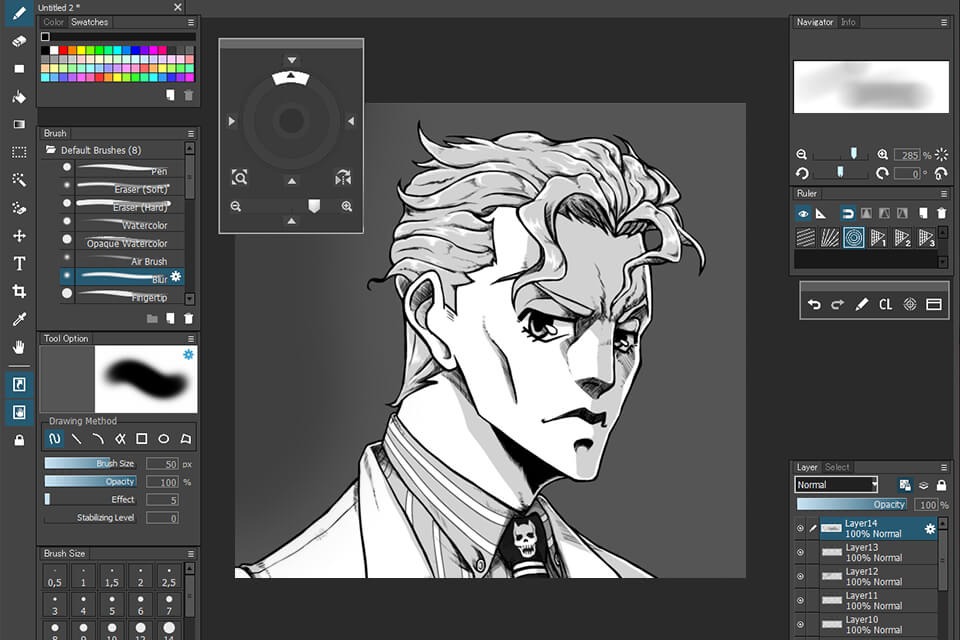
In MediBang, you create a Comic canvas, choose Layer > Add Panel Material and split the frame with the Divide Tool. Drag across the whole panel. If you stop partway, nothing splits. FireAlpaca also has panel material and a Divide Tool.
Krita takes a different route with its Manga Template. Its manual describes vector and cloned-vector structures with Inherit Alpha clipping, which organize comic artwork and editable boundaries. A divider button and a template method both work for comics, but they operate differently.
Tones, lettering and revision
Screentones use patterned texture to add value and shading to black-and-white artwork. MediBang applies tone material to selected panels, and ibisPaint lists screen tones alongside its manga tools. The test is whether the effect stays inside its area when the drawing changes.
Text and balloons need room to move. Add a line of dialogue to a panel and the balloon has to grow. Sometimes the drawing has to change too. The panel layout guide handles the storytelling question of where frames belong. Software selection decides whether those edits stay manageable.
One reply on r/Mangamakers said, “MediBang is free. Has a frame divider tool, and a library of screentones, but applications were not intuitive for me at all.”
Best free manga software and its limits
A free download can handle a complete manga page. The differences are the access model and the optional services.
| Application | Free-access model |
|---|---|
| Krita | Free and open source |
| MediBang Paint | Free core app; optional Premium services |
| FireAlpaca | Free edition; separate paid SE edition |
| JUMP PAINT | Free downloads on supported platforms |
MediBang's official non-Premium cloud terms show where the limits sit: up to 3 GB of cloud storage, three teams, and the latest three recalled versions. Some cloud features require signing in and verifying an email address. These are cloud-service limits. The desktop panel and tone tools from its tutorial stay part of the free drawing workflow.
Ads are another cost of a free app. One r/MangakaStudio user describing ibisPaint X wrote, “Ibispaintx free version has so many features you'd think it was paid. The only drawback is it has more ads than most other free ones, but the tradeoff is completely worth it imo.”
If free features already cover your drawing, the only spending decision left is extras: storage, collaboration, revision history, paid materials or a different edition. Look at what each service gives you and whether it needs an account.
When is Clip Studio Paint PRO or EX worth paying for?
Clip Studio Paint PRO supports illustration and individual manga pages. EX includes PRO's tools and adds integrated management for multi-page projects. For a first four-panel page, you need inking, frames, tones and dialogue, and chapter-wide management adds little. On a 20-page chapter whose page order keeps changing, keeping the pages together and managing their sequence is a concrete reason to look at EX.

Clip Studio's official US PRO/EX FAQ lists perpetual Windows/macOS licenses at $63 for PRO and $277 for EX, tax inclusive.
A perpetual license covers the version you bought. Clip Studio describes an Update Pass separately. For a narrower product decision, see the Clip Studio versus MediBang comparison.
Can I upgrade from PRO to EX later?Clip Studio's support FAQ lists a grade-difference upgrade for perpetual PRO owners.
How seven manga drawing apps compare
These seven apps all have manga tools. Which one fits depends on your device and on the step you would repeat most in your project. Tool names and interfaces vary by edition, so look up the edition you plan to use on its official page.
| App | Best for | Manga tools | Downside |
|---|---|---|---|
| Clip Studio Paint | Artists who want specialist comics tools or a managed multi-page project | Frames, tones, lettering; EX chapter management | Pick the edition and license that match your project and device |
| MediBang Paint | Free-first creators who want a dedicated comic canvas | Panel material, Divide Tool and tones | Takes time to learn the panel workflow; optional cloud services have their own limits |
| Krita | Existing Krita artists and open-source painters | Manga Template with vector-based organization | Takes practice before frame edits feel comfortable |
| FireAlpaca | Desktop creators who want free frame-oriented tools | Comic settings, guides and Divide Tool | The free application and the paid SE edition differ, so check which one has the extras you want |
| ibisPaint | Phone or tablet creators drawing manga pages | Frame Divider, Screen Tone and Text Tool | Ads |
| Procreate | iPad artists who prefer an established drawing workflow | Page Assist and PDF export | Its page workflow differs from dedicated manga-project organization |
| JUMP PAINT | Creators who want free manga-focused materials on supported devices | Pens, panels, tones and tutorials | You can't enroll in MediBang Premium inside JUMP PAINT. Premium-only materials are bought separately |
On desktop, you choose between a drawing app you already know and one built around comic panels. If you keep struggling to change frames, the dedicated divider in MediBang or FireAlpaca is the better fit.
Mobile and iPad choices
JUMP PAINT adds manga-specific materials and teaching resources on its supported platforms, phones included.
The one-page manga test to run before you commit
Try the same small original three- or four-panel scene in your two shortlisted apps. Keep the art rough so the test is about editing a manga page.
| Step | What to do | What good looks like |
|---|---|---|
| Build the page | Arrange three or four rough frames | Panel placement is clear and editable |
| Revise a frame | Widen a panel after sketching | Art and boundaries stay manageable |
| Ink | Draw a small area on a separate layer | Corrections stay separate from rough work |
| Tone or shade | Add one patterned or shaded region | Shading stays inside its intended area |
| Letter | Add and reposition one text or balloon item | You can move dialogue without rebuilding the drawing |
| Note annoyances | Write down confusing steps and awkward workarounds | You can see what repeated tasks cost you |
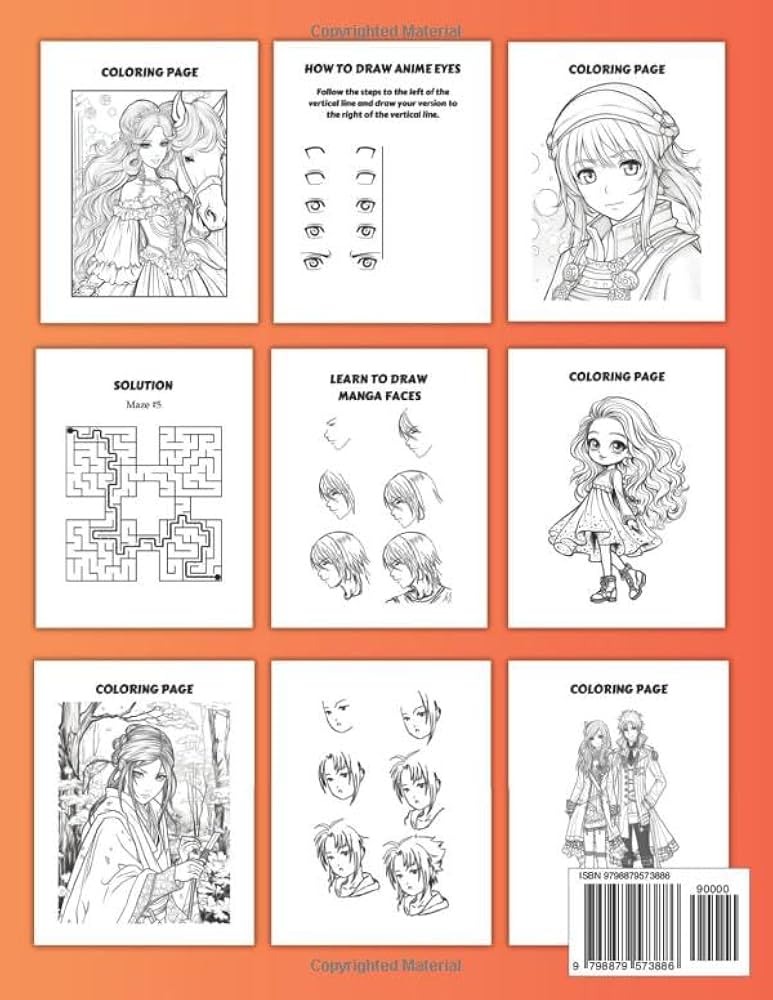
If an app can't complete an essential step for your project, drop it from the shortlist. If both finish the page, pick the one where repeating the necessary revisions is easier.
Know the files you keep and share
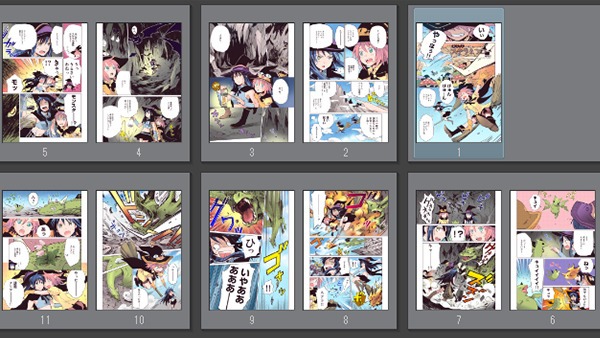
A finished manga page exists in two forms: an editable working project and a file prepared for its destination. An exported image or PDF preserves the appearance but gives little access to the original layers, text or panel structure.
Procreate's version 5.2 Page Assist handbook documents PDF output through Actions > Share > PDF under the Share Layers options. That prepares an output document, and the editable Procreate project stays your working source.
- Keep the source. Save the page in the application's editable format, close it and reopen it. Confirm that the layers, panel elements and text still edit.
- Inspect the output. Export in the destination's selected format and examine the finished page at its display or print size.
- Test handoff compatibility. If someone else will work on the file, open the transferred project in the application or edition they use.
- Inspect asset terms. Read the license for any downloaded fonts, brushes, templates or other third-party resources in the artwork. FireAlpaca, for example, publishes a separate agreement for its downloadable templates. It covers the supplied template materials. The right to create artwork in FireAlpaca and the right to reuse a downloaded resource are separate matters.