If you have a compatible computer and can draw while looking at a separate monitor, start with screenless pen tablets. Pick a pen display if you want to draw directly on the image, or a standalone tablet if you work without a computer. Confirm the software, connections, pen, and full kit before buying, then test one short manga page while the seller's return window is open.
Pen tablet, pen display, or standalone tablet: which fits your manga setup?
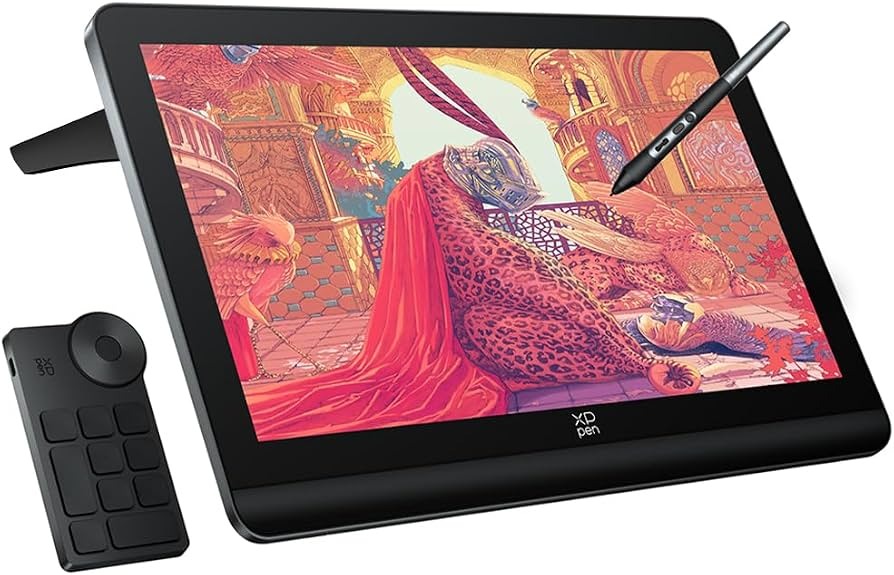
Three kinds of device get sold as a “drawing tablet,” and each puts your hand, your artwork, and your computer in a different place. Start by deciding where you want the image while you draw.
| Device type | Where the artwork appears | What runs the drawing app | Typical reason to choose it |
|---|---|---|---|
| Screenless pen tablet | A separate monitor or device screen | A computer, or an Android device on some models | You already have a computer and monitor and can draw while looking at another screen |
| Pen display | On the display, under the stylus | A computer, or an Android device on some models | You want to draw directly on the artwork |
| Standalone tablet | On its own screen | The tablet itself | You want to draw without a computer |
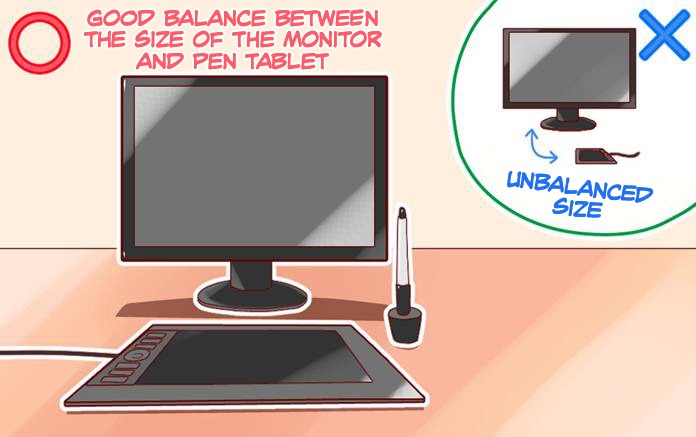
On a screenless tablet, you move the pen across a solid drawing surface and watch the result on another screen. Examples are the XPPen Deco 01 V3 and the Wacom Intuos Pro Medium. This setup works for sustained manga projects if the hand-eye coordination suits you.
A pen display puts the image under the tip, which feels closer to drawing on paper. The Huion Kamvas 13 Gen 3, Wacom One 14, and XPPen Artist Pro 16 Gen 2 belong here. Their screens still need a computer to run your drawing software.
Some pen tablets and pen displays also work with selected Android devices. Connection and power requirements differ by model, and the Android device still runs the app.
An iPad with a compatible Apple Pencil works without a computer. The iPad runs the app, and the exact model, Pencil pairing, and software edition decide which features you get.
Match your computer, connection ports, and manga software first

A pen display can suit your drawing style and still fail to connect the way you expect. USB-C is a connector shape. A USB-C display connection also needs video output through a supported feature such as DisplayPort Alt Mode.
One buyer on r/drawingtablet, comparing the Huion Kamvas 13 Gen 3 with the Wacom One 14, wrote, “I’m not sure if my PC has fully-featured USB-C ports.”
The Kamvas GS1333 needs a computer that supports the video and data connection you choose. Its included 3-in-1 cable is for computer connections. An Android device needs a full-featured, video-capable USB-C connection and additional power. Huion's Kamvas 13 Gen 3 connection instructions describe the supported arrangements.
On the Wacom One 14 (DTC141), a supported video-capable USB-C port gives you the single-cable connection. Some HDMI and USB-A setups need a separately sold converter, according to Wacom's connection guide. The converter adds to your total cost. The port decides whether the setup works at all.
A five-part compatibility list
- Exact model: Find the full generation and code, such as GS1333 or DTC141. One product-family name can cover different hardware.
- Computer and operating system: Compare the operating system of your computer or other device with the model's published driver requirements.
- Video and power: Find out whether your computer supports the stated USB-C video mode, or whether the model needs the documented HDMI, data, and power connection.
- Stylus: Match the pen generation to the tablet. An iPad and Pencil must also be an explicitly compatible pair.
- Drawing application: Make sure the manga program runs on your device and OS, in the edition that has the features you need.
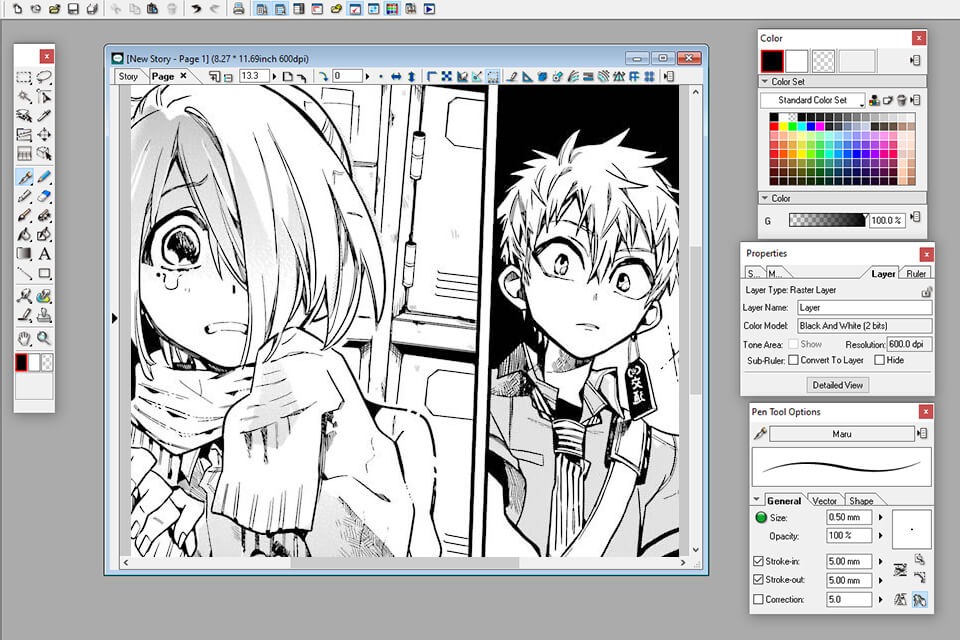
Clip Studio Paint has tools for panel borders, speech balloons, and effect lines. Multi-page management comes with Clip Studio Paint EX, according to the official comics and manga feature guide. So a multi-page chapter and a single illustration have different software needs.
On an iPad, the Pencil model changes what input you get. Apple lists pressure sensitivity for Apple Pencil Pro but not for Apple Pencil (USB-C). The Apple Pencil compatibility reference lists the supported pairings.
How much screen and drawing space do manga pages need?
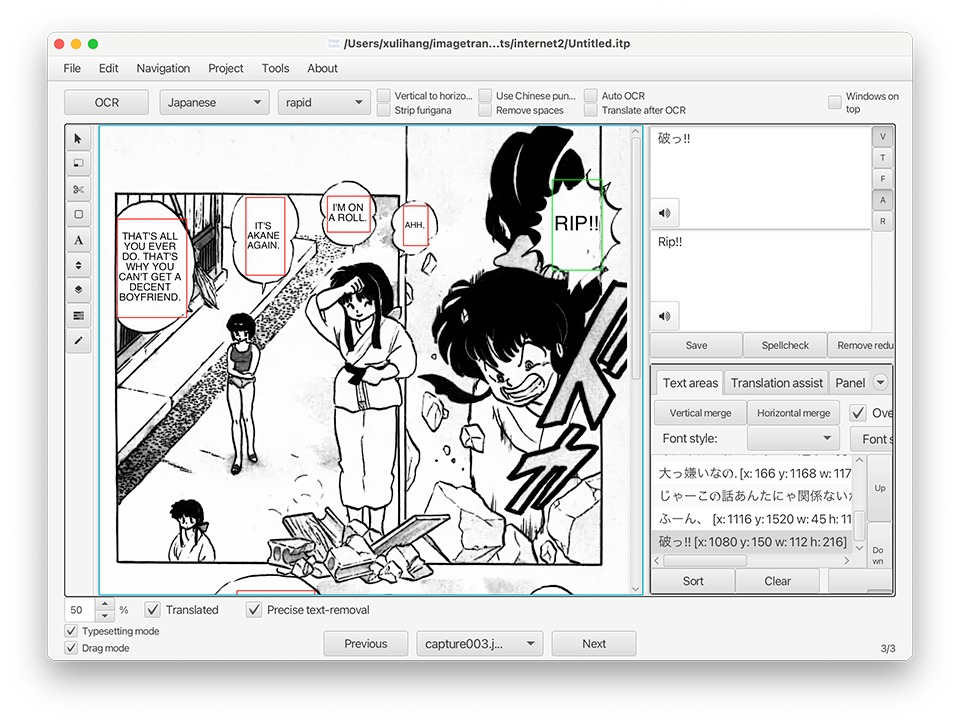
A manga page rarely fills the whole application window. Brush settings, layer controls, reference art, and text tools compete with the panel you are inking, so your usable canvas is whatever space remains once those panels are open.
On a screenless tablet, the active pen area is the region that registers the stylus, and your separate monitor decides how much artwork you see. The tablet's outer footprint and its active area are different measurements.
On a pen display, artwork and interface share the built-in screen. The compact Kamvas 13 Gen 3 takes up less working space than the larger Artist Pro 16 Gen 2, which needs more desk or carrying room.
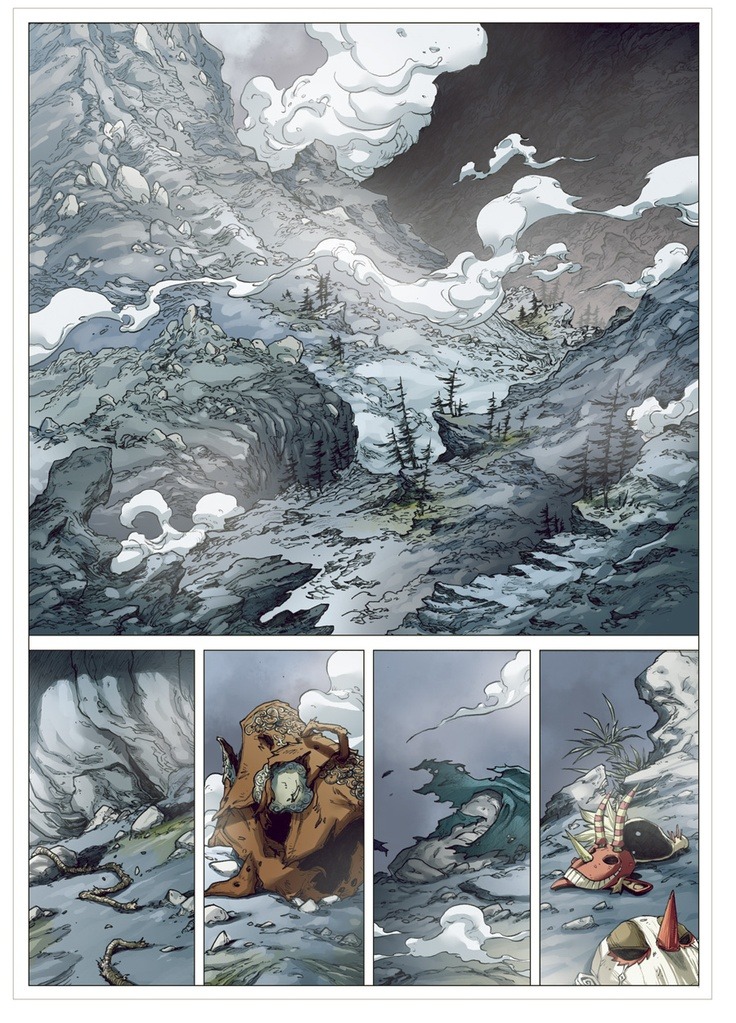
Before you order, test the space on a monitor you already own, as long as it is at least as large as the screen you are considering:
- Resize your drawing app window to the physical size of the model's screen.
- Open a manga page, a reference image, and your usual tool palettes inside it at a comparable zoom.
- See how much canvas remains.
A compact display is easier to move between desks, and a larger one leaves more room for the page and controls. Artists disagree on whether a 13-inch display feels cramped. Monochrome pages put precise line work and panel navigation first. Color-heavy or vertical-scroll work demands more visible workspace. Your screen resolution does not set the export resolution of the finished artwork.
What matters for manga inking beyond pressure levels?
For a fine ink line, what counts is how the pen starts, follows your hand, and tapers to a stop. The number printed beside “pressure levels” describes only one part of the input system.
| Advertised pressure levels | Device |
|---|---|
| 4,096 | Wacom One 14 |
| 8,192 | Wacom Intuos Pro Medium (2025) |
| 16,384 | XPPen Deco 01 V3; Artist Pro 16 Gen 2; Huion Kamvas 13 Gen 3 |
These advertised counts describe pen-pressure input resolution. They do not tell you which device draws a cleaner manga line. Initial activation force decides when a very light stroke starts registering. Jitter or diagonal wobble shows along slow curves. On pen displays, parallax is the apparent gap between the nib and the displayed mark. Brush stabilization, your drawing application, and your technique also shape the stroke on screen.
Navigation controls matter when you switch between ink lines, rulers, layers, zoom, and undo through several panels. The Deco 01 V3 advertises eight programmable keys, and the Kamvas 13 Gen 3 has two dials. Controls that put frequent commands within easy reach help during a long page session.
The 2025 Wacom Intuos Pro Medium, model PTK670, supports USB and Bluetooth but has no multitouch. If touch gestures are part of your drawing habits, the exact generation matters.
Decide which matters most for your manga work: light-stroke control, physical shortcuts, or surface feel. When you compare pen behavior, look for demonstrations of slow strokes and tapered lines.
Can you learn to ink manga on a screenless tablet?
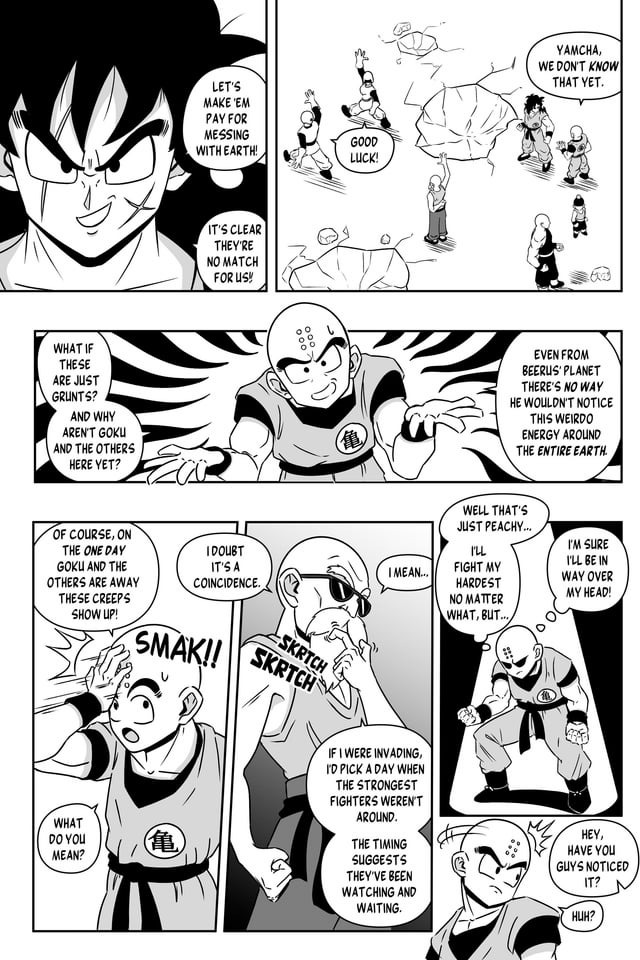
Yes, if drawing while looking at another screen becomes comfortable for your hand and eyes. An artist who came to a screenless device after drawing on paper posted on r/drawingtablet: “I feel like the line is wobbly bcs I can’t see?” Try several straight and curved strokes with the same brush and zoom, then ink a panel border, a tapered contour, and one tiny manga panel. If the hand-eye mapping stays distracting, drawing directly on the screen suits you better.
Six drawing setups to compare for different manga workflows
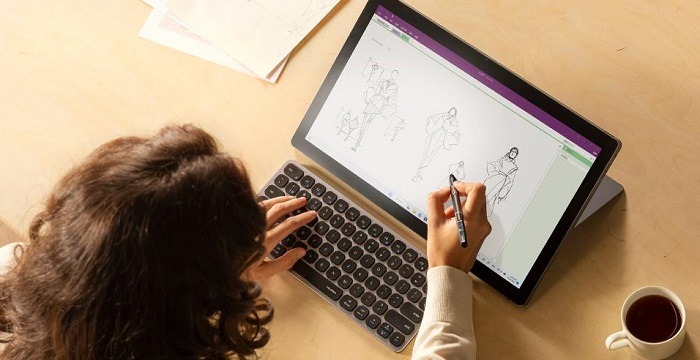
Each device below suits one manga job and has a condition that rules it out.
| Device | Specs | Manga scenario | Reason to reject it |
|---|---|---|---|
| XPPen Deco 01 V3 | Screenless; 10 × 6.25 in active area; USB; eight keys; 16,384 pressure levels | First digital pages with a suitable computer and screen | You prefer drawing directly on the artwork |
| Huion Kamvas 13 Gen 3 (GS1333) | 13.3 in; 1920 × 1080; PW600L pen; two dials; 16,384 pressure levels | Compact direct-screen inking | Your computer's video setup is unsupported, or the work area feels cramped |
| Wacom One 14 (DTC141) | 14 in; 1920 × 1080; 4,096 pressure levels | Direct-screen manga drawing with a compatible computer | The required video connection or converter does not suit you |
| XPPen Artist Pro 16 Gen 2 (MD160QH) | 16 in; 2560 × 1600; 16,384 pressure levels | Desk-based page production with a larger working space | Desk or transport space is limited |
| Wacom Intuos Pro Medium (2025, PTK670) | Screenless; 263 × 148 mm active area; 8,192 pressure levels; USB/Bluetooth; no multitouch | An established screenless workflow | You need to draw on a screen or use touch gestures |
| Compatible iPad + Apple Pencil | Standalone; display and pen features vary by exact pairing | Drawing manga without a computer | The Pencil or app you choose lacks an essential feature |
If you already have a working computer and want a small first commitment, the Deco 01 V3 is the screenless pick. The Kamvas 13 Gen 3 gives you pen-on-screen drawing, and your computer's video connection decides whether it works. Compare the two if you are asking whether direct contact with the image justifies a more involved setup. If you spend hours arranging pages at one desk, look at the larger Artist Pro 16 Gen 2.
Budget for the complete setup, tablet included
A tablet's sticker price tells you little about the accessories you need to make it usable. A complete setup can include an existing computer and monitor, a supported video cable, a converter, a stand, software, and a compatible stylus.
If you are unsure how long digital art will remain a hobby, that uncertainty belongs in your budget. One prospective buyer on r/drawingtablet put it this way: “I don't know if this hobby is gonna last a month, a year, or even longer.” An initial setup built on equipment you already own limits the commitment and leaves room to learn.
| Item | Package status |
|---|---|
| Computer and monitor | Usually separate for devices that connect to a computer |
| Data/video cable | Standard Kamvas 13 Gen 3 package: 3-in-1 cable included, full-featured USB-C cable separate |
| Stand | Standard Kamvas 13 Gen 3 package: separate |
The iPad route adds its own combination of tablet, compatible Pencil, and drawing software. Retail bundles, prices, and return policies differ by seller.
Test a manga page before you commit to the tablet
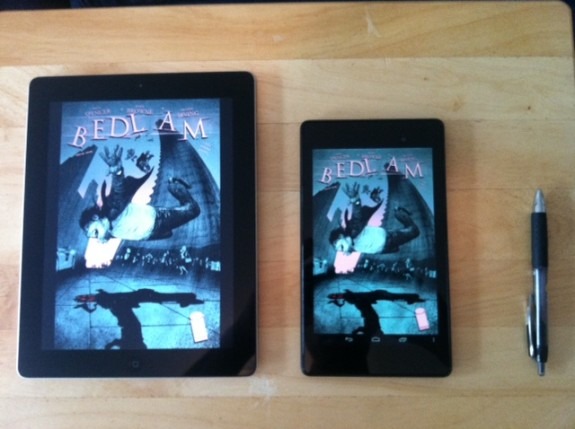
A short original manga page lets you judge the device you received while the seller's return window is still open. It does not need to be a finished chapter. A few ink strokes, a panel, a line of dialogue, and an export cover the basic working path.
One-page test checklist
- Light strokes and contours: Draw slow diagonals, narrow tapered lines, and a longer curve. Watch for anything that interrupts your inking.
- Panel construction: Make a border with the manga app's panel tools and add one simple straight-line background element.
- Dialogue: Place a speech balloon and a short line of text.
- Navigation: Use undo, zoom, rotate, and brush switching while you work.
- Hardware controls: Operate every key and dial on your device.
- File handling: Save the work, export it in the format you need, and reopen the result.
- Working comfort: Judge the physical workspace and how easily you reach the panels and tools at a usable zoom.
On r/huion, one Kamvas 13 Gen 3 owner reported that “both dials started to fail, making it impossible to work with them.” Other contributors reported positive experiences with the same model.

This short test shows connection, input, control, and file-workflow problems right away. Treat a control that only needs practice differently from a recurring failure that stops you from drawing.