Yes, you can make complete manga pages on an iPad. For a short first comic, start with an app you already know, as long as it handles panels, lettering, and the export you need. Switch to dedicated manga software when managing a chapter turns those manual tasks into a chore. Finish and inspect one complete page before you plan a series.
The best test is a small finished comic. A character sketch only tells you if you like drawing in an app. To find out whether you can make manga in it, you need a page with a readable sequence, dialogue, and a properly exported file.
We'll follow a simple original scene: a character finds a warning on a table just as someone knocks at the door. Four panels are enough to cover the decisions that matter, including how to frame a shot and where the last sound effect goes.
Can you make complete manga pages on an iPad?
An iPad handles every stage of a manga page: sketching, arranging panels, inking, adding text, and preparing the output file. Sequence is what separates a comic from an illustration. A polished drawing of your character is an illustration. A comic page leads the reader through actions in a deliberate order.
A beginner on r/Mangamakers asked the equipment question plainly in June 2022: “I’m thinking of drawing it on my iPad with an apple pencil. Whats the best app? Is procreate good for manga?”
You can start with an iPad you already own. The first thing to look at is your stylus. Apple publishes a model-by-model Pencil compatibility chart, so look up your exact iPad model before you buy one. Apple Pencil (USB-C) supports tilt but lacks pressure sensitivity, while Apple Pencil Pro supports pressure-sensitive input. A compatible stylus without pressure sensitivity still draws, but pressing harder won't vary the brush.
This guide covers conventional page-based manga. A vertically scrolling Webtoon uses a different reading layout and different output files.
Choose your manga app by the work you need to Finish
Beautiful brushes help, but panel construction, text revisions, page organization, and export decide how much work remains once the drawing is done.
| Your starting situation | Best fit | What you get | Trade-off |
|---|---|---|---|
| You already draw in Procreate | Keep Procreate for a short comic | Familiar drawing tools, manual frames, Page Assist | Panel borders and balloons take more manual work |
| You want dedicated single-page comic tools | Clip Studio Paint PRO | Comic frames and drawing tools | A more specialized interface and iPad plan-based licensing |
| You expect to manage a long chapter | Clip Studio Paint EX | Multi-page project features and batch export | More production tooling and a paid-plan commitment |
| You want a budget-friendly manga workflow | MediBang Paint | Panel, halftone, and text tools | Features differ by edition |
| You prefer a mobile-oriented drawing interface | ibisPaint | Frame Divider, Screen Tone, and Text Tool | Check that the tools cover your finishing needs |
The perpetual licenses described for Windows and macOS don't extend to the iPad, where access runs on a monthly or annual plan.
Clip Studio also has Simple Mode and Studio Mode on tablets. Simple Mode trims the interface, and Studio Mode gives you the full toolset. If a tutorial uses a comic-frame control, you need Studio Mode.
Set the page size before you start drawing
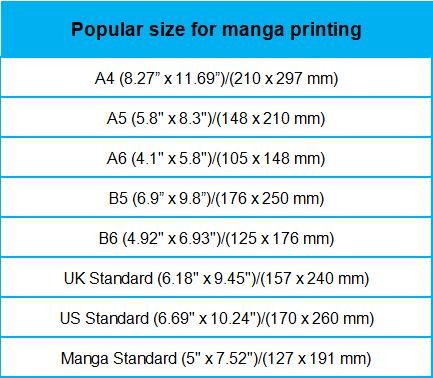
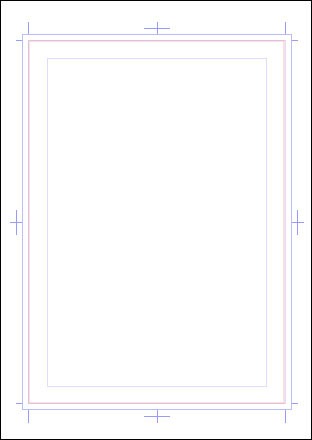
Pick the canvas by where the page will end up. A digital page needs the right pixel dimensions, and the size it's displayed at decides how readable your lettering is. Print needs physical trim dimensions, bleed, safe areas, and the printer's file specifications. These measurements describe different things:
- Pixel dimensions: The width and height of the image in pixels.
- Trim size: The physical dimensions of a printed page after cutting.
- Bleed: Artwork extending beyond the trim boundary so printing and cutting don't leave unintended white edges.
- Safe area: The region where important text and artwork should stay clear of trimming.
- DPI: A resolution setting that relates pixel dimensions to physical print size.
| Destination | What to find out | What matters in the output | Common mistake |
|---|---|---|---|
| Digital manga page | Receiving site's pixel dimensions and accepted format | Readable text, page shape, correct order | Assuming one export size suits every website |
| Printed manga | Printer's trim, bleed, safe-area, resolution, and file requirements | Complete artwork at the edges and safe lettering placement | Assuming a tutorial preset automatically meets print requirements |
| Vertical-scroll comic | Platform's scrolling-image specifications | Vertical sequence and screen readability | Assuming a conventional manga-page template works unchanged |
MediBang's iPad comic tutorial uses the preset “Doujinshi (A5 Size): 350dpi.” A separate 2022 cloud-project lesson shows a web-oriented “Top to Bottom (For WEB)” page progression at 1980 × 1660 pixels, with the on-screen label “New Page Resolution: 350px”. Neither example is a universal print specification.
Canvas size also affects how much you can edit. In Procreate, the number of available layers depends on canvas dimensions and iPad hardware, so a larger working image leaves fewer layers for separate sketches, inks, and corrections.
To create the page in MediBang Paint, choose New Canvas → Comic Template, then set up a canvas for your destination. Read off the resulting pixel width and height.
Turn your idea into a manga page with clear panels
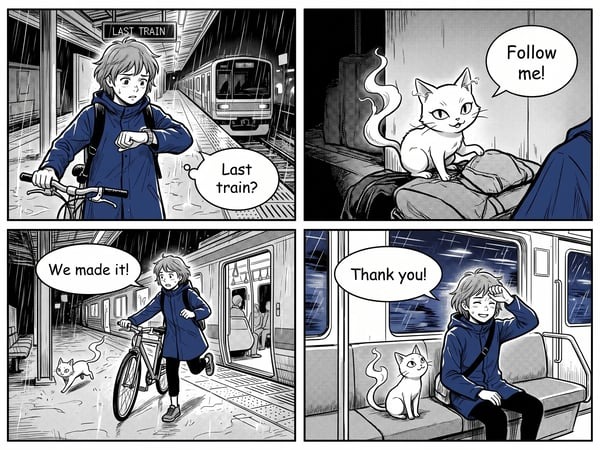
Start with a thumbnail, a tiny rough version of the whole page. It should show where the reader looks, what happens, and how one moment leads to the next. Save detailed faces and backgrounds for later.
For this exercise, use four story beats:
- Discovery: A character enters a quiet room and sees an envelope on a table. Leave enough room in the panel to show where the door and the table sit.
- Message: A close-up reveals the note: “DON'T OPEN THE DOOR.” Make the writing large enough to be the focus of the panel.
- Interruption: A knock comes from the door. The sound effect “KNOCK.” breaks the character's attention.
- Reaction: The character's hand stops at the door handle. A closer view and a little empty space hold the suspense.
Sketch these four moments roughly on one page. A larger final panel slows the last beat. A smaller panel makes the interruption feel abrupt.
For this English-language example, use a left-to-right reading sequence. Traditional Japanese manga often reads right to left. Either direction works for an original project if panels and text follow it consistently.
A gutter is the space between panels. It separates moments, gives frames some space, and helps the eye find the next action.
Building the frames in your app
In MediBang Paint, select the Panel Layout Tool and create an outer frame. Start the division stroke outside one edge of the frame and continue through it to a point beyond the opposite edge. Use the Manipulate Tool to adjust the panels' positions and sizes. A stroke that ends inside the panel won't create the division.
ibisPaint's Frame Divider is another route, with controls for division and spacing. In Procreate, you build the borders from a reusable manual template. Draw a rough line or rectangle and hold your Apple Pencil or finger on the screen at the end of the stroke. QuickShape turns it into a straight line or a regular rectangle.
In an October 2026 r/ProCreate discussion, a comics creator described a reusable border template: “I have a giant green rectangle that makes my border. This is a template I actually just duplicate.” (r/ProCreate comment)
Number the four thumbnail panels and trace their reading order with a finger, including the route toward any lettering. If the eye jumps to the wrong panel, adjust the composition while it's still rough. Then construct the final frames.
Draw, ink, and add screentones without losing editability
Keep rough drawings, finished ink, and optional tones on separate editable layers. A correction to the hand then won't disturb the background of the panel.
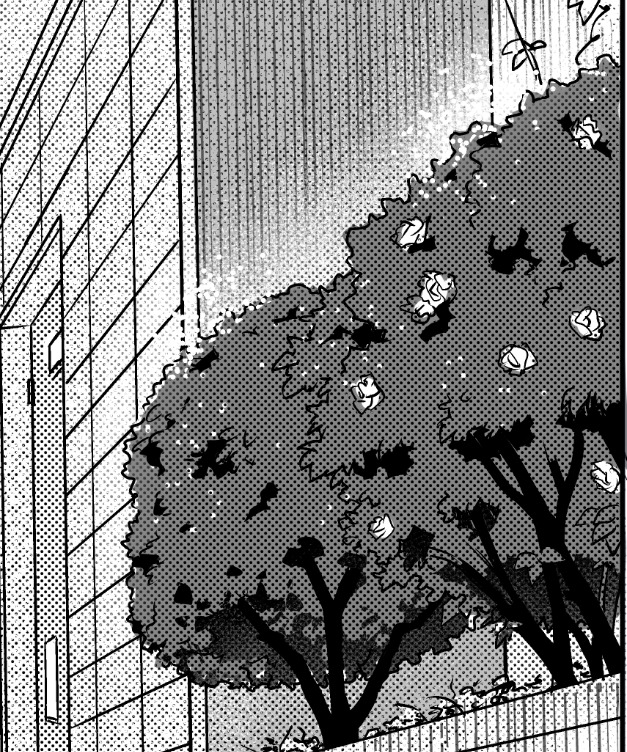
Ink for a clear silhouette at ordinary page size, then add patterned screentones only where they improve depth or focus. MediBang's official lesson uses a Halftone layer with 60 lines and 30% fixed depth.
Complete one inked panel, then toggle its separate tone layer off and on to see whether any line detail is lost.
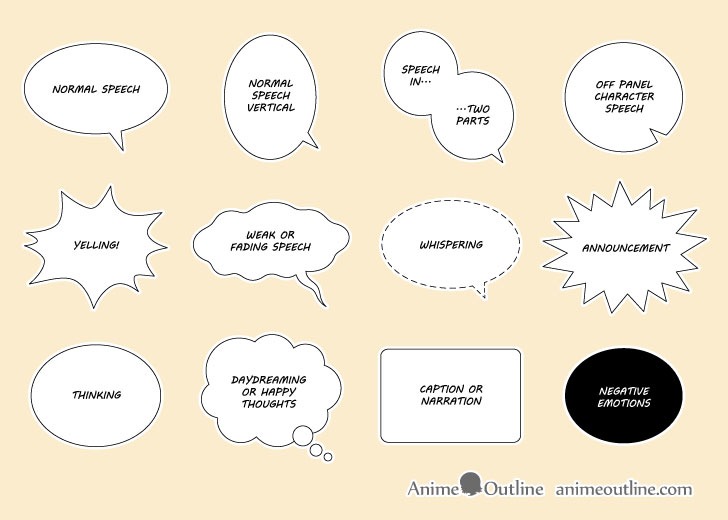
Put speech balloons and lettering where readers can follow them
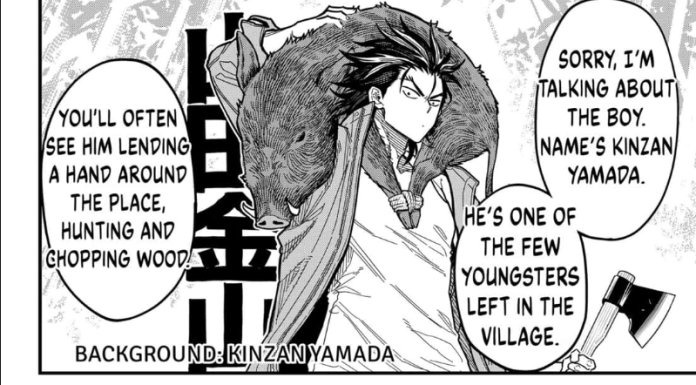
A speech balloon that covers the character's expression, or forces readers to jump backward, changes the scene, even if the artwork underneath is finished.
In the four-panel example, the warning is written on the note, so it sits visibly in the second panel. The third panel uses “KNOCK.” as a sound effect, with enough space to give it emphasis. You don't need spoken dialogue just because the app has a text tool.
Reserve room for these elements in the rough layout. If the scene has speech, point balloon tails at identifiable speakers and order the balloons to follow the page's reading direction.
In MediBang Paint, choose the Text Tool, tap the position for the warning, type the words, and choose Done. The app creates a text layer you can move and adjust for font, size, and orientation.
ibisPaint has lettering tools too, and Clip Studio Paint adds specialized comic-production features. Procreate supports text and manual balloon placement. To insert editable text there, choose Actions → Add → Add Text, then position the text box and adjust its style.
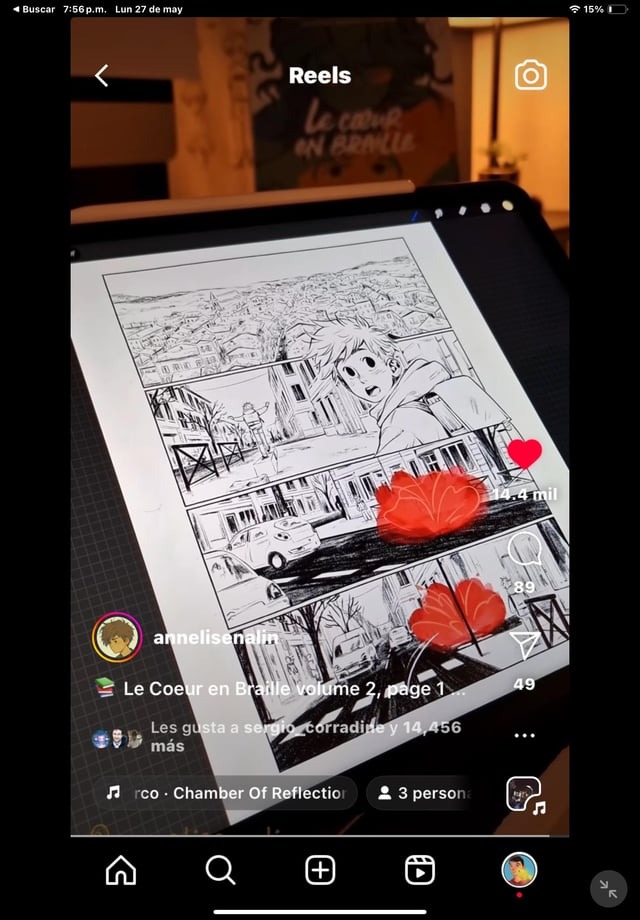
A hybrid workflow helps when the drawing app makes final assembly awkward. An October 2026 r/ProCreate commenter described returning artwork to another program: “I bring it back into clip sushi when I'm ready for panels and word balloons.” (r/ProCreate comment)
Moving layered artwork between applications adds import, export, and cleanup work, which pays off when the second program makes panel or balloon revisions easier.
To test your lettering method, change the wording of the note after the layout is finished. The new words should stay legible, fit the panel, and need no painting over finished art.
Organize more than one page without starting over
Procreate includes a multi-page interface called Page Assist.
To enable Page Assist, open your artwork and choose Actions (wrench) → Canvas → Page Assist. Once it's on, existing ungrouped layers count as individual pages. You can group several layers into a single page, which keeps the separate artwork components inside that page.
Procreate's Page Assist manual covers the page timeline and navigation. You can also rearrange pages and their groups as the sequence changes.
For a longer version of the scene, imagine ending the first page with the knock and opening the second with the hand approaching the door. That adds a page turn.
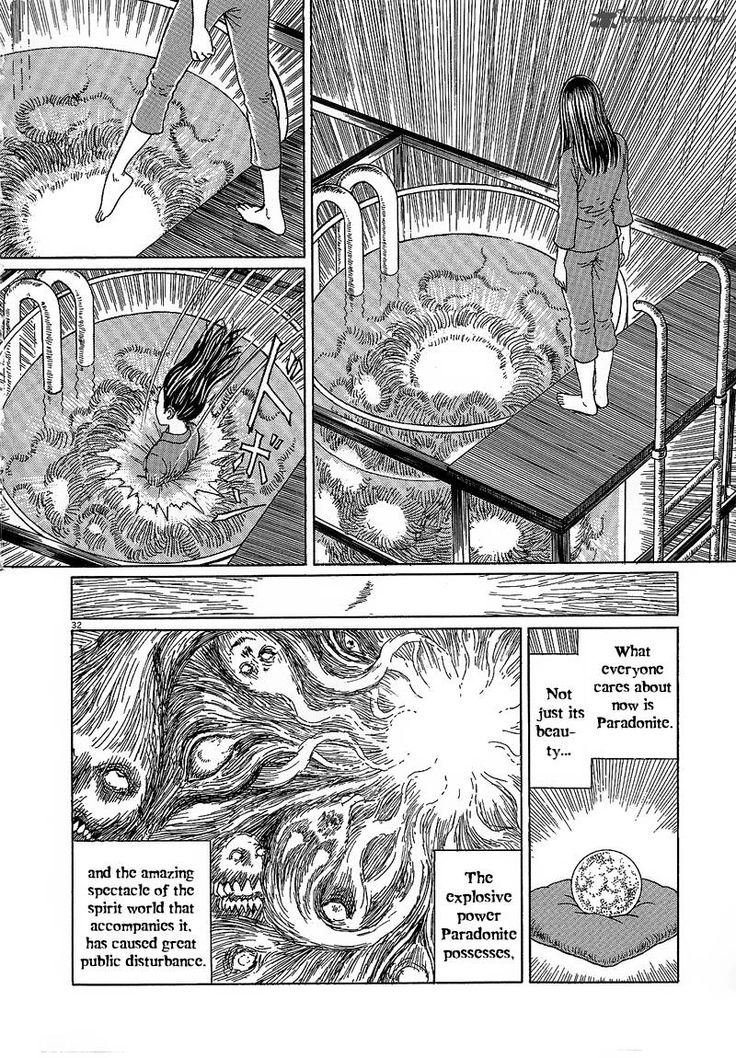
A simple folder and filename scheme keeps exported or separately stored pages in sequence, for example:
chapter-01/page-001
chapter-01/page-002
Page Assist handles multiple pages, but it doesn't duplicate every chapter-management and print-production tool in Clip Studio Paint EX.
Export your page and inspect the finished file
The file you send to a reader or printer is separate from the editable artwork on your iPad.
Procreate keeps a native .procreate project and exports layered PSD files for handoffs. Its sharing options also include PNG, JPEG, TIFF, and PDF. For a Page Assist document, choose Actions → Share → PDF under Share Layers to export a multi-page PDF.
Clip Studio Paint EX supports batch export for multi-page projects in formats including PNG, JPEG, TIFF, PSD, and PDF. On the iPad, you save exports through the Files app.
The destination decides the delivery format. A PDF that opens correctly or an image that looks sharp on-screen can still need different dimensions or preparation for a particular publisher or print shop.
For this page, inspect the exported version at an ordinary reading size. The note should be legible, the knock should sit in its intended panel, and the final hand-and-door image should be fully visible. Look at the rendered file itself, because the editor's zoomed canvas can hide small text or unwanted screentone patterns.
Run through this list before you expand the project:
- Destination: The export format matches the requirements you chose before drawing.
- Panel sequence: The four actions read in the intended order.
- Lettering: Note text, sound effects, and any speech balloons stay clear at reading size.
- Edges: Important art and borders haven't been cropped or moved outside the intended safe area.
- Tones: Patterned shading stays legible without distracting artifacts.
- Delivered file: The exported file reopens with the expected dimensions and page order.
- Editable master: A separate working copy stays saved with the layers needed for corrections.