You can draw a short, readable manga page on an Android phone or iPhone without buying a stylus. Use an app with panel and lettering tools, make one small three- or four-panel scene, and keep both the editable project and a separate image export. If precise lines, legible dialogue or smooth editing become too difficult on your phone, use a larger screen or a mixed workflow.
Can you make a manga page on a phone?

Yes. Mobile drawing apps with comic-making tools let you arrange panels, draw characters and add dialogue on a smartphone. You don't need a desktop computer or a drawing tablet for a small first project.
A single anime-style portrait is an illustration. A manga page is a sequence of moments your reader follows in order, so the panels, expressions and speech balloons have to work together.
Start with one original page of three or four panels. Give it a beginning, a small turn and an ending. That's enough to practice the basics without taking on a whole chapter.
The example in this guide follows a character in a library who misreads a handwritten note. It needs only a few simple objects, two expressions and a readable sequence of panels.
Choose an app and a way to draw
For this project, pick an app with editable layers, panel creation, lettering and file export.
| App | What it offers | Watch for |
|---|---|---|
| MediBang Paint | Mobile manga projects, panel division, drawing layers, balloons and text | iPhone and Android have separate tutorials and interface paths |
| ibisPaint | Frame Divider, text, screentones, manuscript tools and stroke correction | Controls and feature access depend on the installed version |
| ArtFlow | Comfortable phone sketching and convenient undo controls | One Reddit commenter sketches in ArtFlow, then moves the rough sketches to ibisPaint on a tablet for further work |
Your finger, a capacitive stylus or an active pen?
Your finger is a fine place to start. It costs nothing extra, though your fingertip can cover the part of the line you're drawing.
- Finger: Good for rough shapes, basic panel composition and short strokes. Working close to the screen takes practice.
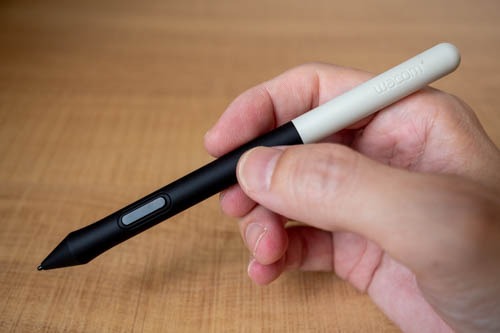
- Capacitive stylus: Gives you a different contact tip, but doesn't automatically add active-pen features.
- Compatible active pen: An option when your exact device supports the specific pen model and you prefer drawing with it.
Samsung lists S Pen compatibility by device and pen variant. Apple's compatibility information now includes iPhone Duo with Apple Pencil (USB-C), supported from iOS 27.2. Other Apple Pencil models don't work with iPhone Duo. Look up which pen your phone supports in the Apple iPhone Duo Pencil guide or the manufacturer's device list before relying on an active pen.
Why the simpler app can feel better
One Reddit artist uses ibisPaint on larger devices and ArtFlow for initial phone sketches.
... Ibis is what I use on my Android tablet and PC, but on my phone I use Art Flow instead.
Art Flow is definitively a much more limited app than Ibis, but it has two big advantages for phone uses for me:
1. You can use the volume buttons for Undo and Redo. So I can hold my phone in one hand, and when I need to undo (which is pretty darn often), I can just do it very quickly.
2. It has the best stabilizer I've tried when you using something like stuff like a disc stylus or like a Moto G Stylus phone (which still has some odd capacitive stylus). With Art Flow, the most I can really do is still only initial sketches, but I can then transfer to Ibis for proper drawing on my tablet.
Choose the canvas for the page you want to share
Pick the canvas based on where the page will end up. A page for a phone screen, a printed manga manuscript and a vertically scrolling comic have different constraints.
| Destination | Canvas | What to follow |
|---|---|---|
| Single digital manga page | A page-shaped document with enough space for panels and lettering | The size it will be viewed at, and the reading order |
| Printed manga page | Plan physical trim, bleed, safe content area and resolution | The printer's or publisher's manuscript specifications |
| Vertical-scroll comic | A continuous vertical composition with space for reveals and transitions | The destination platform's format requirements |
For the library-note exercise, choose a single digital page. You can focus on visual storytelling and readable dialogue while keeping document setup simple.
Print adds more decisions. ibisPaint explains trim, bleed, the inner frame and how physical dimensions, resolution and pixels relate.
A scrolling comic also changes the storytelling. A reveal can come after your reader scrolls through empty space. A traditional page uses panel placement and its boundary to control what appears together.
If you're headed to print, see the guide to manga page size and bleed. For a scrolling episode, use the Webtoon creation workflow.
Make your first manga page, one panel at a time
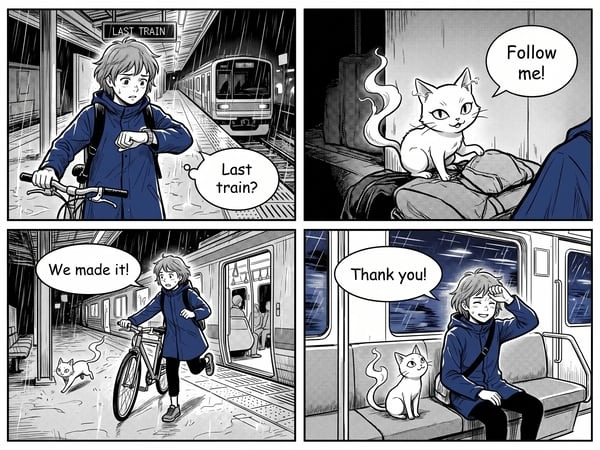
Start with the scene's four beats, then make rough thumbnails before committing to finished drawing. Thumbnails give your reader's route through the story a shape while changes are still easy.
Your character finds a note in the library. The hurried handwriting appears to say, “Meet me by the snacks.” Confident they've understood it, they head for the vending machine. Only when they look again do they recognize the word the writer meant: “stacks.”
Arrange the scene into four panels
| Panel | Scene | Key visual detail | Text |
|---|---|---|---|
| 1 | Your character finds a note | Library desk, note and curious expression | Little or no dialogue |
| 2 | They guess what the handwriting says | Ambiguous lettering and a pleased reaction, without a clear view of the word the writer meant | “Snacks?” |
| 3 | They hurry toward the vending machine | Movement and eager body language | A brief exclamation if the action needs one |
| 4 | They examine the note again | The corrected reading and an embarrassed expression | “Stacks. Oh.” |
Save the fully legible correction for panel four, after the character's confidence in panel three has set up the reveal.
Set up a comic project in the app
In MediBang, start in My Gallery and choose Comic. Create a project from a suitable template, then use the Divide Tool to make panels.
On iPhone, New Panel Material creates an outer frame. Draw division lines across that frame to split it into panels. On Android, the outer-frame command is called ADD COMIC PANEL, and division lines split the frame the same way.
In ibisPaint, the Frame Divider tool works another way: add a frame, split it and adjust the spaces between panels. The ibisPaint manga tools guide shows the steps.
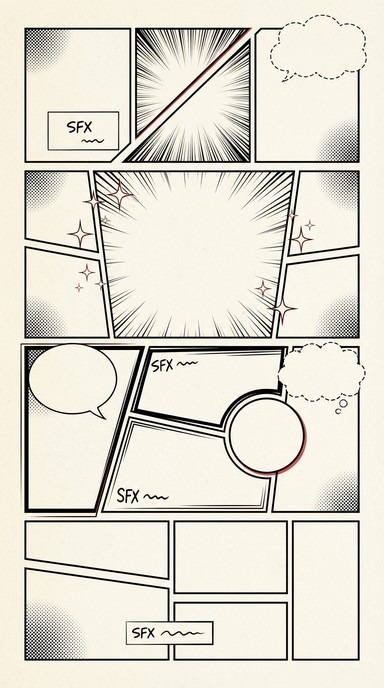
The blank space between panels is called a gutter. Arrange the panels for your reading direction. This English-language example reads left to right.
Sketch, ink and letter the page
Draw basic shapes before refining faces or backgrounds. A desk, shelves and a vending machine set the scene, and the character's changing expression carries the joke. Leave room for dialogue before the drawings get crowded.
- Rough sketch: Place the character, note and key objects in each panel. Put the rough lines on their own layer if the app supports layers.
- Clean lines: Draw the outlines you need on another layer, refining expressions and the objects that matter to the story.
- Panel borders: Keep frame edges and gutters clear so the eye can move through the page.
- Speech balloons and text: Add the character's words and keep the reading order obvious. Use editable text functions where available.
- Optional tones: Add light shading or screentones when they help separate shapes or direct attention.
You can start from a notebook sketch: MediBang's 2022 iPhone comic tutorial describes importing a draft drawn on paper.
If a balloon sends the eye in the wrong direction, see the guide to manga panel flow and gutters.
Get steadier lines when drawing with your finger

Your finger covers the line you're drawing, and the viewing area is small. Zooming, panning and adjusting correction settings make lines easier to control.
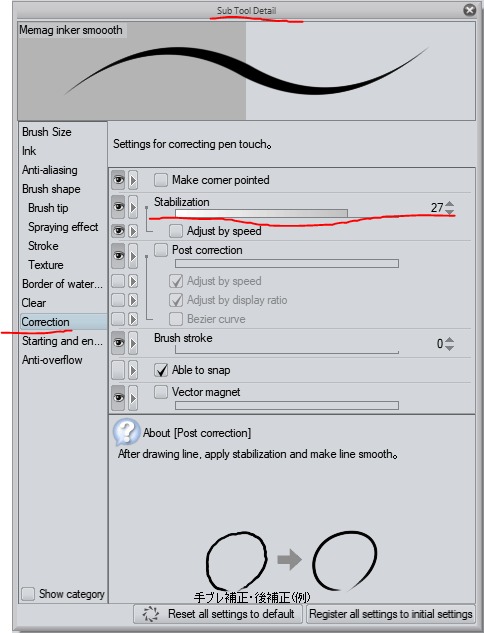
ibisPaint's stabilizer corrects lines in real time or after the stroke.
Compare two versions of the same stroke
Draw a curve like the outer edge of your character's face with little or no correction. Draw a similar curve with a modest correction setting, then compare both at an ordinary viewing size.
Look for a curve that follows the movement you meant, without a distracting delay or shape change. Keep the version that gives you better control.
One artist's phone grip
A contributor to r/Ibispaintx described the gestures they use to draw without dropping the phone.
I just hold my phone thing so it doesn't fall ... and use the thumb and index from my right hand, use the index to draw and both for moving aground and if I'm drawing a line and I don't like it I can touch the screen with the thumb so it cancels the line and double tap to undo something ... the rest is just practicing but you also have to find a comfortable way for you this is mine and it may or may not work for you
Test any grip by whether you can reach the canvas and undo controls comfortably while keeping the phone secure.
For the library scene, use broad strokes for the character and closer work for the face and handwritten note. Letter the small dialogue with the app's lettering tools, which is easier than drawing it by hand.
Keep the project manageable on a small phone

Large canvases, elaborate effects and many layers make editing harder on a phone. Watch whether strokes respond promptly, the project opens and navigation stays usable. If the document stays sluggish, simplify nonessential effects or move demanding finishing work to a larger screen.
Save the editable project, make a backup, and export the image
A finished image works for reading and sharing. The editable project keeps what you need to revise lines, layers and dialogue.
Keep synchronization separate from backup
ibisPaint's cloud synchronization guide covers automatic syncing while the gallery is displayed, storage-related conditions, and deletion choices that can remove the matching cloud data. A cloud-synced gallery can't replace an editable copy you keep separately.
When the app supports an editable sharing or export method, follow this sequence with your finished page:
- Keep the editable master: Save the project in its editable form.
- Make an independent copy: Store a second editable version in a place that doesn't depend on the app's cloud sync.
- Export the page: Create a PNG or JPG for viewing and sharing.
- Reopen both: Open the editable version, then the exported image, and look at the complete artwork.
Almost nine hours of artwork that stopped opening
An artist on r/Ibispaintx described their file failing after days spent on a piece of movie fan art.
So for a couple of days I've been making a fanart for a movie and everything was doing just fine until today. I closed my app for a second and then came back just to see an error on the piece I was drawing on. ... it completly crashed and restarted.
I've tried to clear app cache, forcing app to close through settings, cleared up my phone storage and nothing seems to work. Even came up with idea to share it to files and open up in ibis (and I gained additional 29 minutes?) but even with it my app was crashing.
The drawing took me almost 9 hours and it would be a shame to lose all my progress.
This is the case the independent copy protects against.
ibisPaint can also save a previous artwork state from its time-lapse history as an IPV file. It isn't a guaranteed fix for a corrupted project.
Read the page at reading size before making another
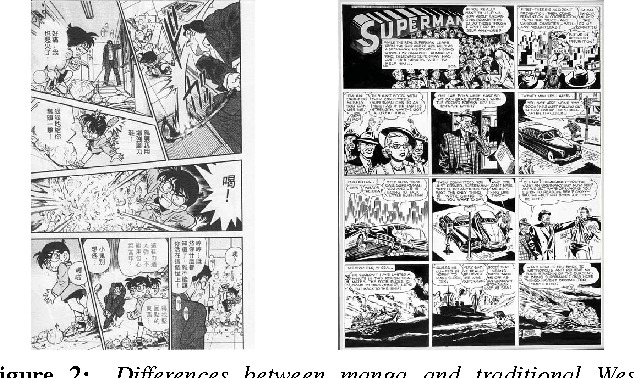
A page can look beautifully detailed at high zoom and still be hard to follow when it fills a phone screen. Lettering, panel order and the timing of the final reveal all have to hold up at reading size.
View the exported page at that size. Read every balloon and follow the panels in order, without enlarging individual words.
Then hand the page to someone who hasn't heard the story. Ask them to explain what happened, including the misunderstanding and the correction. Wherever they get confused is the place to revise.
If a balloon hides a reaction, move it or change the framing so your reader discovers the joke in the right order.
When the page works at reading size, you can start another short scene or a longer story. To share it, see publishing your first manga.